Agent Chat - Ask a Language Model About Your Notes
EtherPK now has Agent Chat.
I use AI agents in two distinct ways. For coding I use TUIs, but for day-to-day and non code projects I used to use the web chat UIs like many others. Two things about this was always jarring:
- You're starting context from scratch. You might have a couple of agent instructions configured, but you have to tell the agent what you're thinking, from the beginning.
- When you get the information you need, holding on to it is hard. Within a day or two it's burried in your chat history.
EtherPK is a mardown based PKMS (notes app), and it solves both of these problems.
You can type /Agent within your notes (EtherPK supports standard prose and outliner blocks in the same document). The Agent Chat panel opens within your document, and you can choose how much context to give it. That might be nothing, the current block tree, the document or the whole graph (in the case of the latter - immediate surounding context is sent and the agent is given tools to navigate the rest of your graph). You control what the agent gets, and what stays private.
In the example below, I'd had my agent create a walkthrough for a new PC build, and then queried some of the steps using the /Agent command.
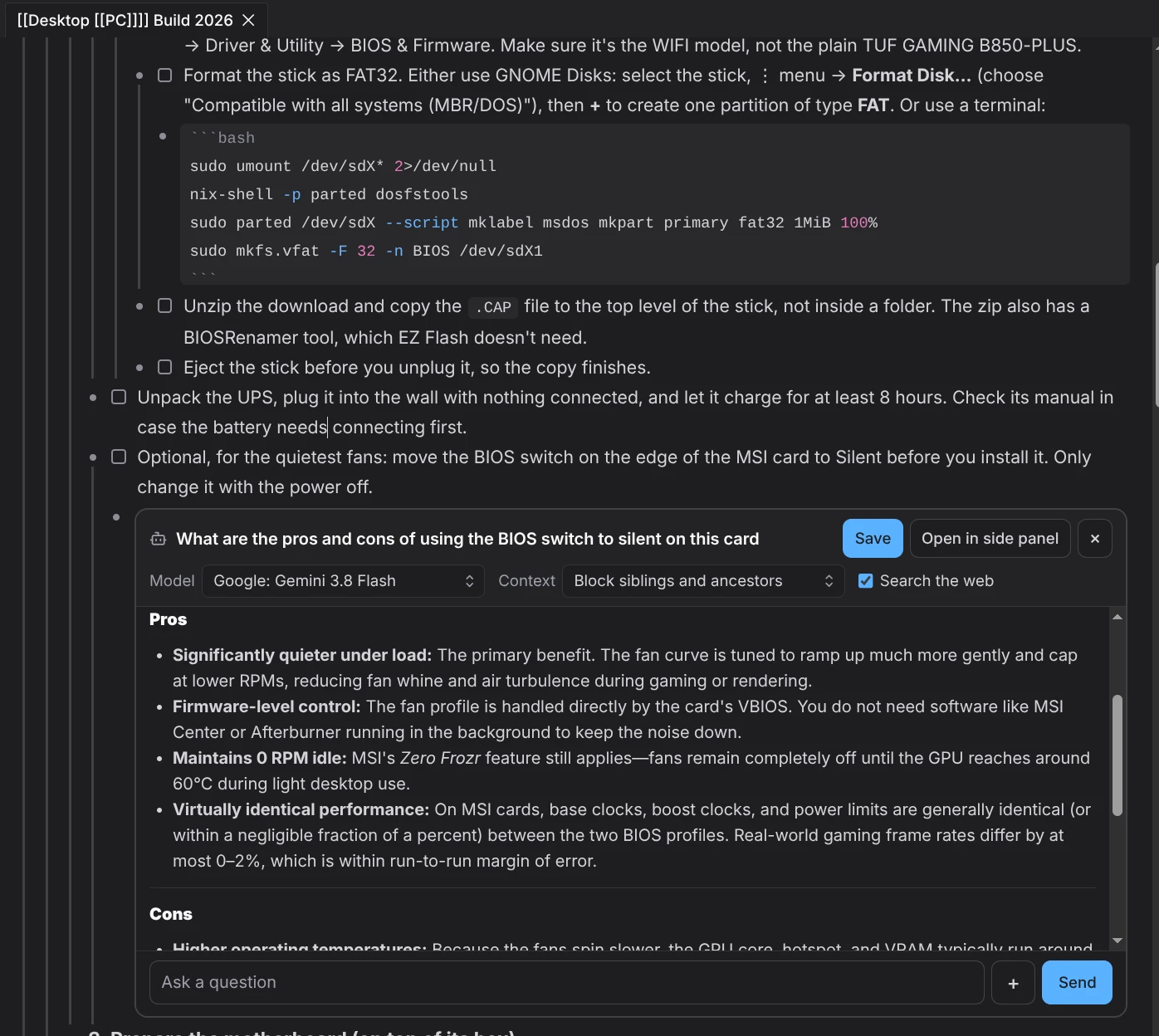
You can try EtherPK via the demo (for testing Agents you'll need an API key - this will stay local on your device. If you use Sync+ the key will be encrypted in your user settings)
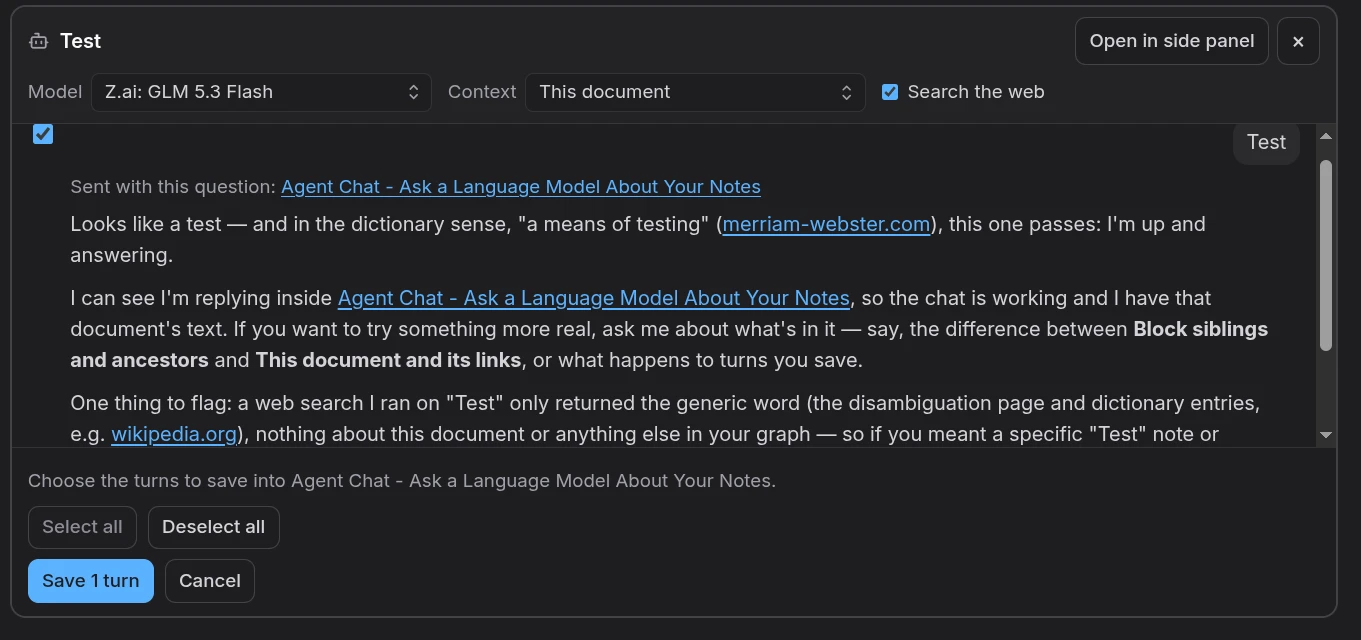
Once you have your responses, you can choose how much you save to your document. You might want all of the turns (including yours, or just a few):
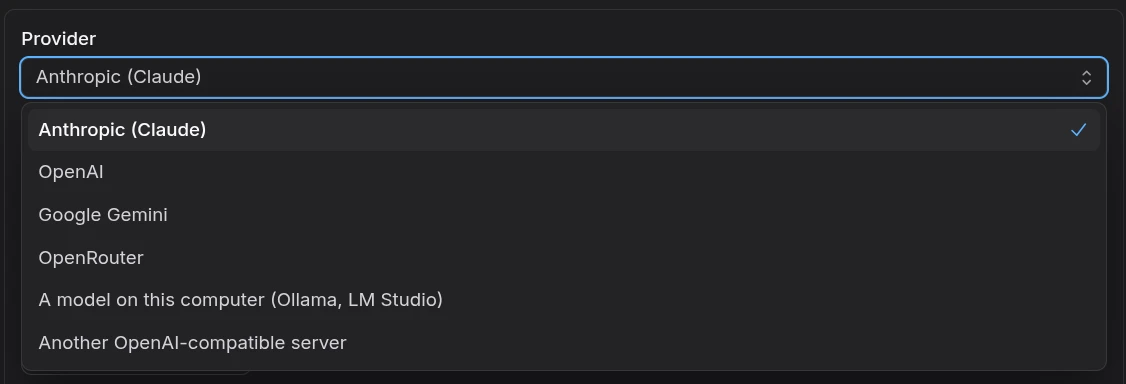
A variety of providers are available (Anthropic, OpenAI, OpenRouter etc ...) and you can set the default model.
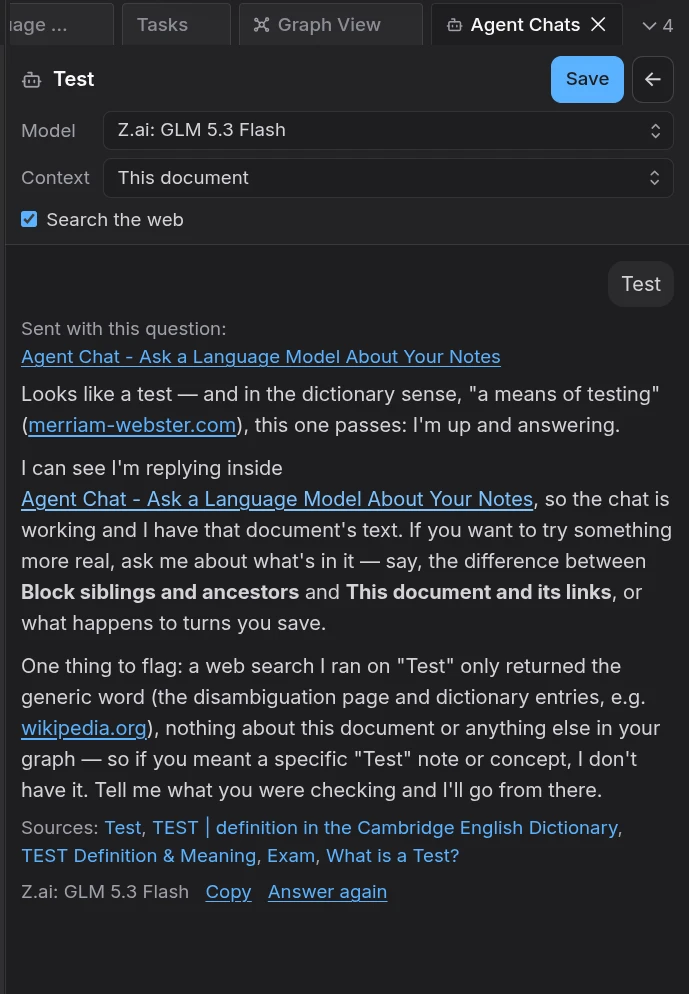
You can also chat in the sidebar if that's more convenient:
Full Walkthrough
Type /Agent on a line of any document and a chat with a language model opens right there, under the bullet you were on. You choose what the model may read: nothing else, the outline around the chat, the document, the document and the pages it links to, or the whole graph. The model can only read. Nothing goes into your notes unless you choose turns and save them, and then they arrive as ordinary outline blocks, with any image from the chat saved into the graph's assets.
You bring your own key. Your browser calls the model provider directly, so EtherPK's servers are never in the path and EtherPK sells no model. Anthropic, OpenAI, Google Gemini and OpenRouter work out of the box, and so does a model running on your own computer through Ollama or LM Studio, or any OpenAI-compatible server.
Every picture in this post is a real chat with Google's Gemini 3.8 Flash through OpenRouter, in the plants graph on our demo.
Connect a model
Model connections live in the Agents tab of the Graphs page, and in each graph's Settings > Agents. Choose a provider and paste a key, then select Check to list the provider's models. OpenRouter lists hundreds, so the model box filters as you type. Typing gemini-3.8 is enough to find the one I wanted.
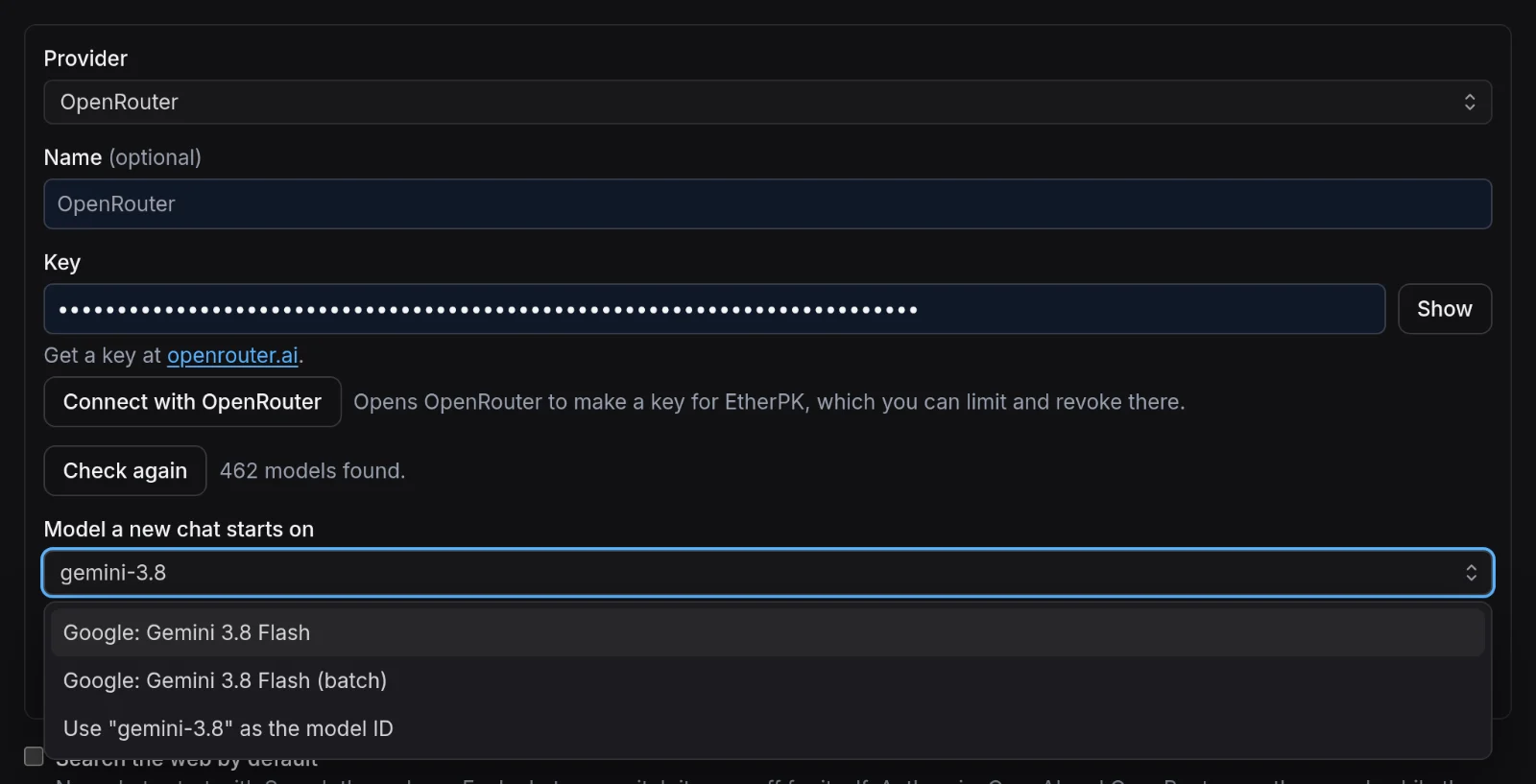
With OpenRouter you can also select Connect with OpenRouter, which opens OpenRouter to create a key for EtherPK that you can limit and revoke there. Set a spending limit on any key you use.
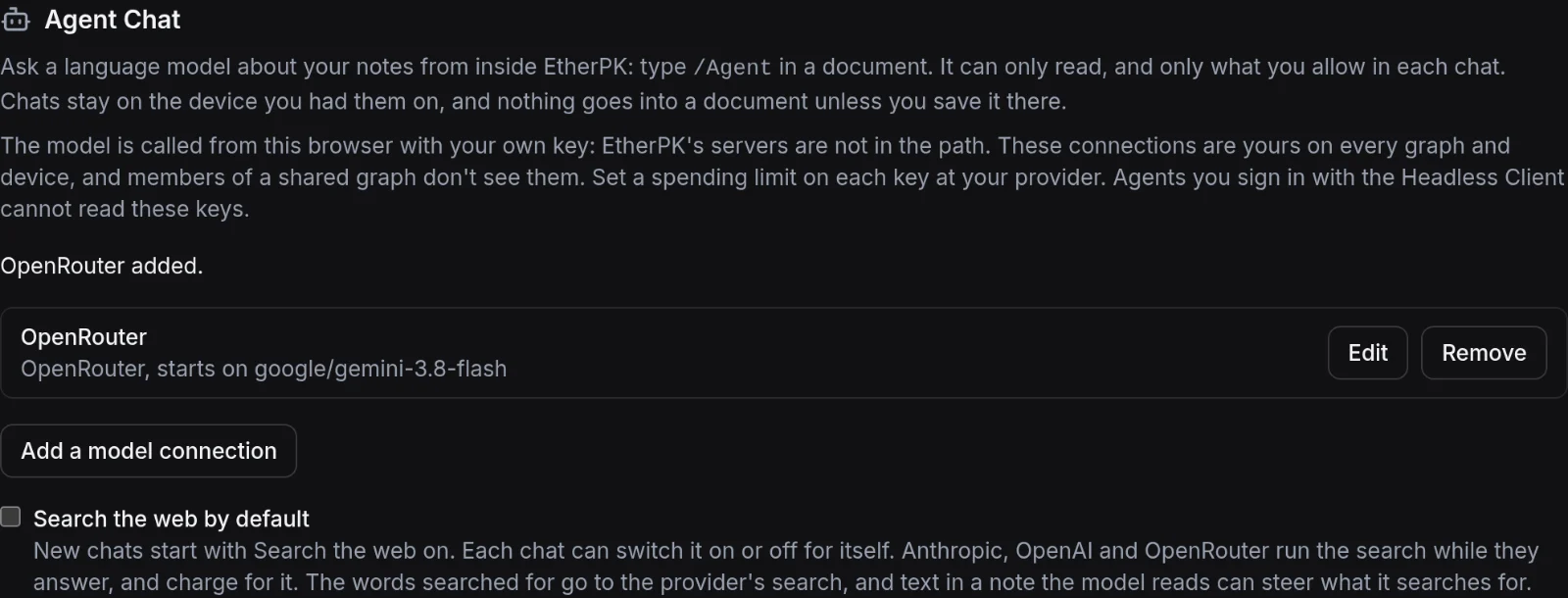
Your connections belong to you rather than to a graph. They work on every graph, and once your account syncs a graph they follow you to your other devices, encrypted on your device like your Encryption Keys. Members of a shared graph never see them, and an agent you sign in with the Headless Client cannot read your keys either. With more than one connection, Make primary chooses the one new chats start on.
Under the connections, Agent instruction takes one instruction for every model in every chat, such as "Answer in British English" or "Keep answers short". It goes to the model with your notes at the start of every question.
Start a chat with /Agent
Type /agent on a new line and pick Agent from the menu. Alt+A does the same at the line the cursor is on.

The chat opens in the document, lined up with the bullet like an image or a code block. It starts small and grows as the conversation does. The line under the robot says what the model will be sent. The empty bullet it sits beside belongs to the chat until you close it, so the cursor skips over that line.
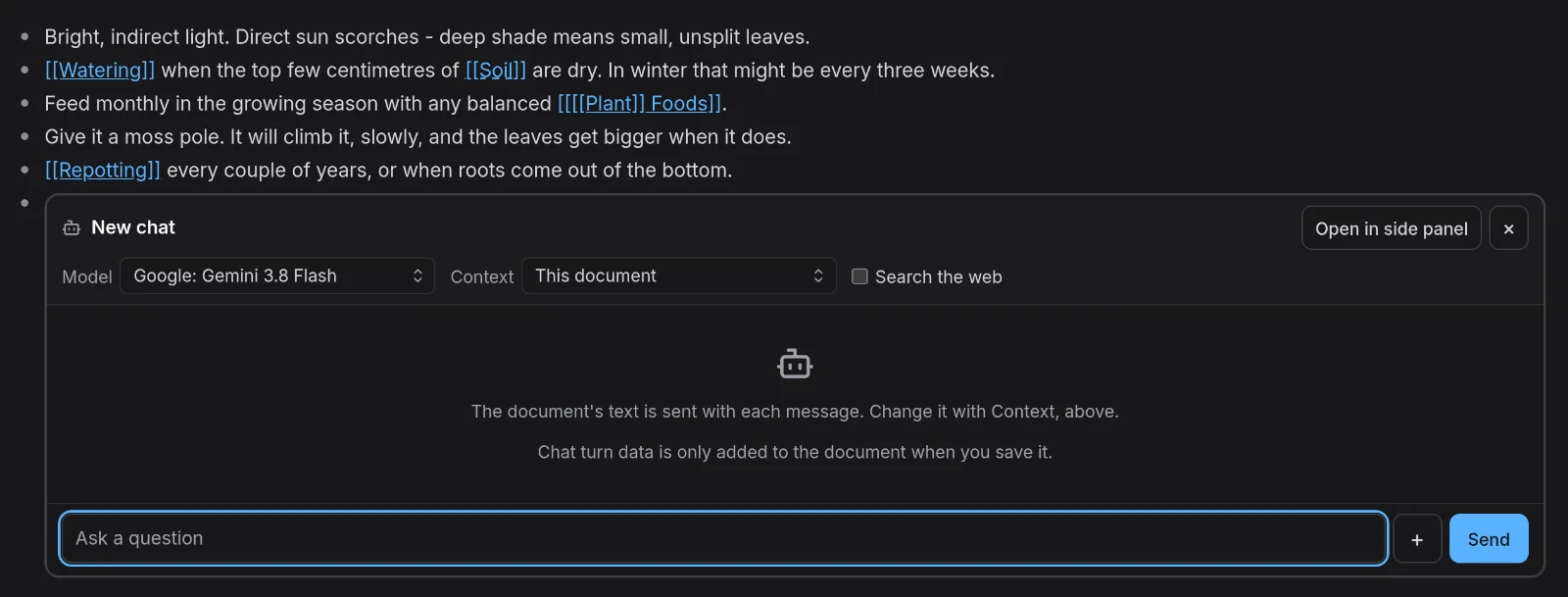
Choose what the model reads
Context decides what goes to the model with each question:
- Nothing else: only your question.
- Block siblings and ancestors: the outline around the chat. That's the bullets beside it, with what is under them, and the bullets above it.
- This document: the whole document the chat is in.
- This document and its links: the document and every page it links to directly.
- The whole graph: the document, plus search and read tools the model uses to find anything else.
A chat opened on a bullet with other bullets beside or above it starts on Block siblings and ancestors, since you're usually asking about the part of the note you're in. Anywhere else it starts on This document.
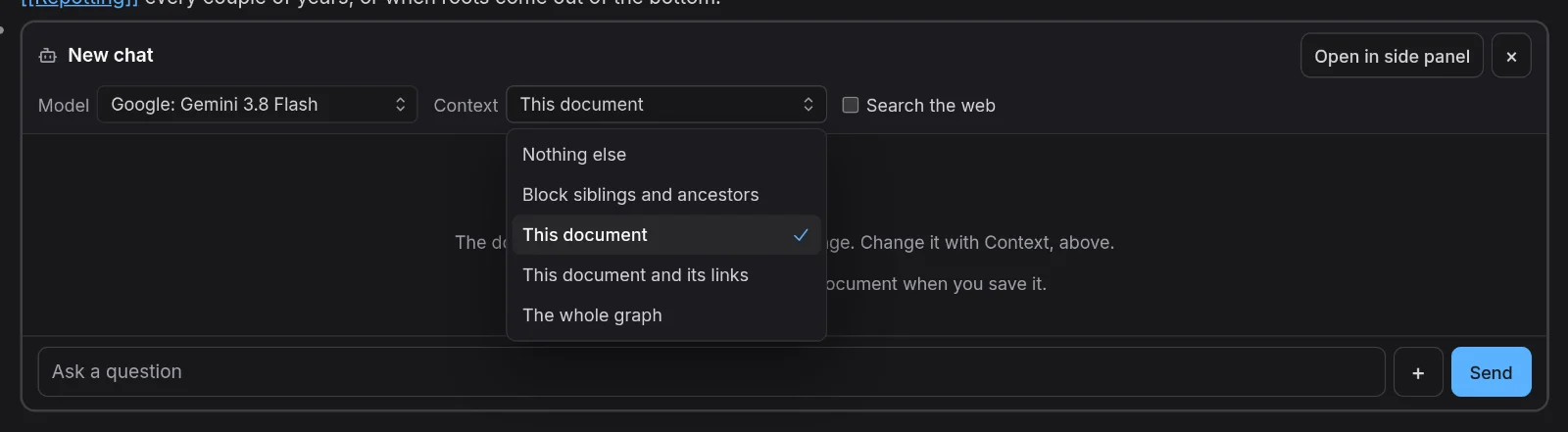
Opened inside the Monstera page's Care list with Block siblings and ancestors, the model sees that part of the page and nothing else. Under each question, Sent with this question names exactly what went with it.
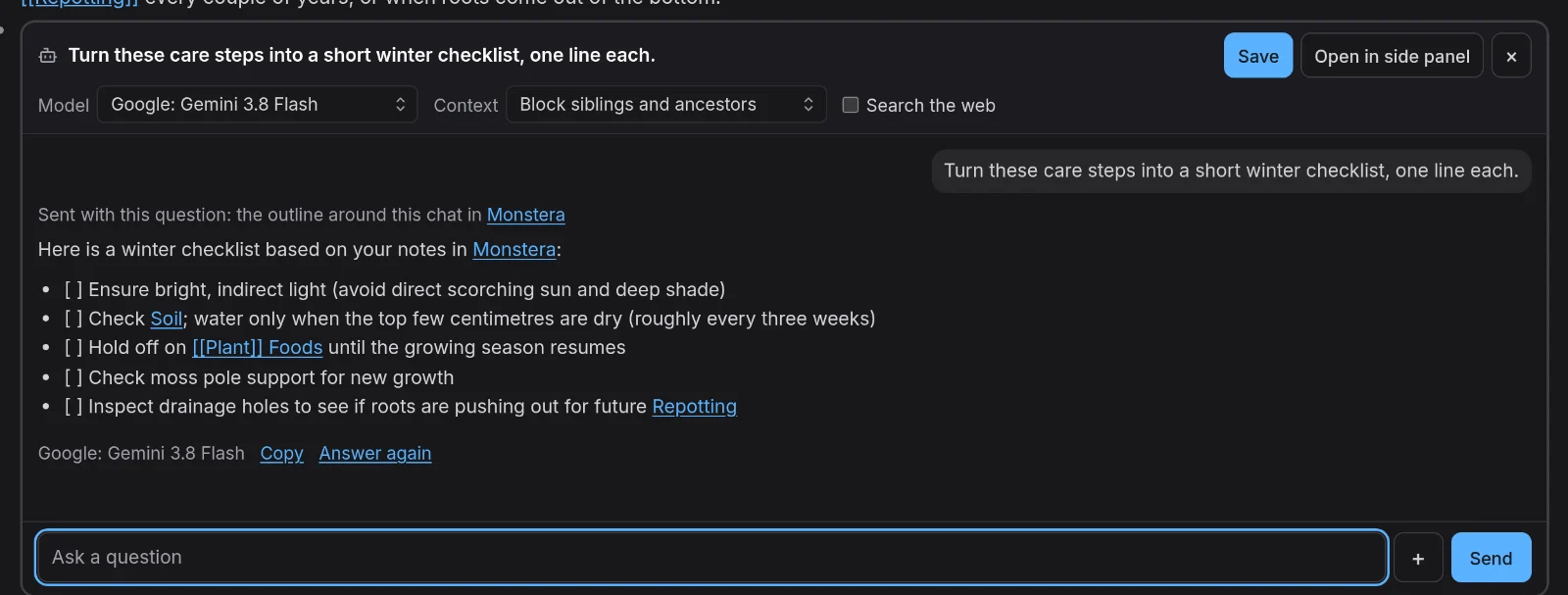
Sometimes the note already holds the question. With Block siblings and ancestors, This document or This document and its links, you can press Send without typing anything, and the message box says so: Send block siblings and ancestors. The model is told that the question is in what it was sent, and the turn reads Sent block siblings and ancestors. Nothing else and The whole graph need a prompt.
A protected document is never sent, under any context, and the model is never told its name, even while you have it unlocked.
Ask about a photo
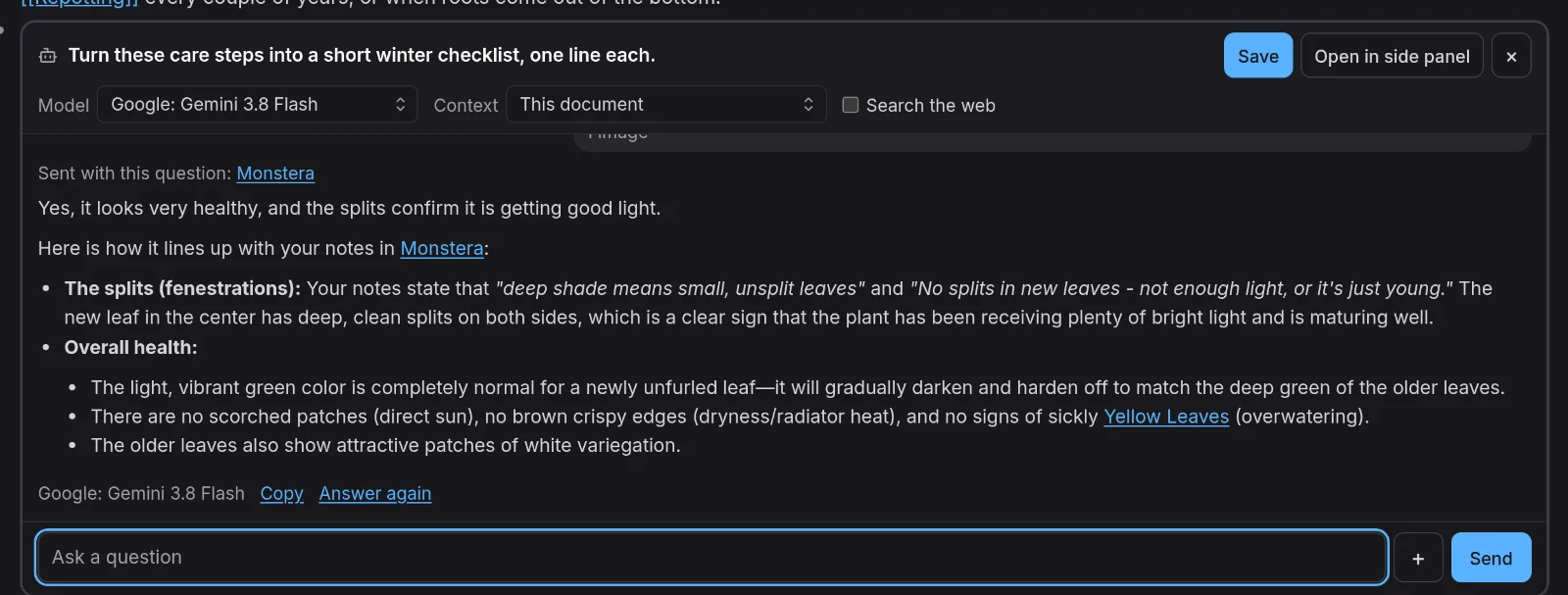
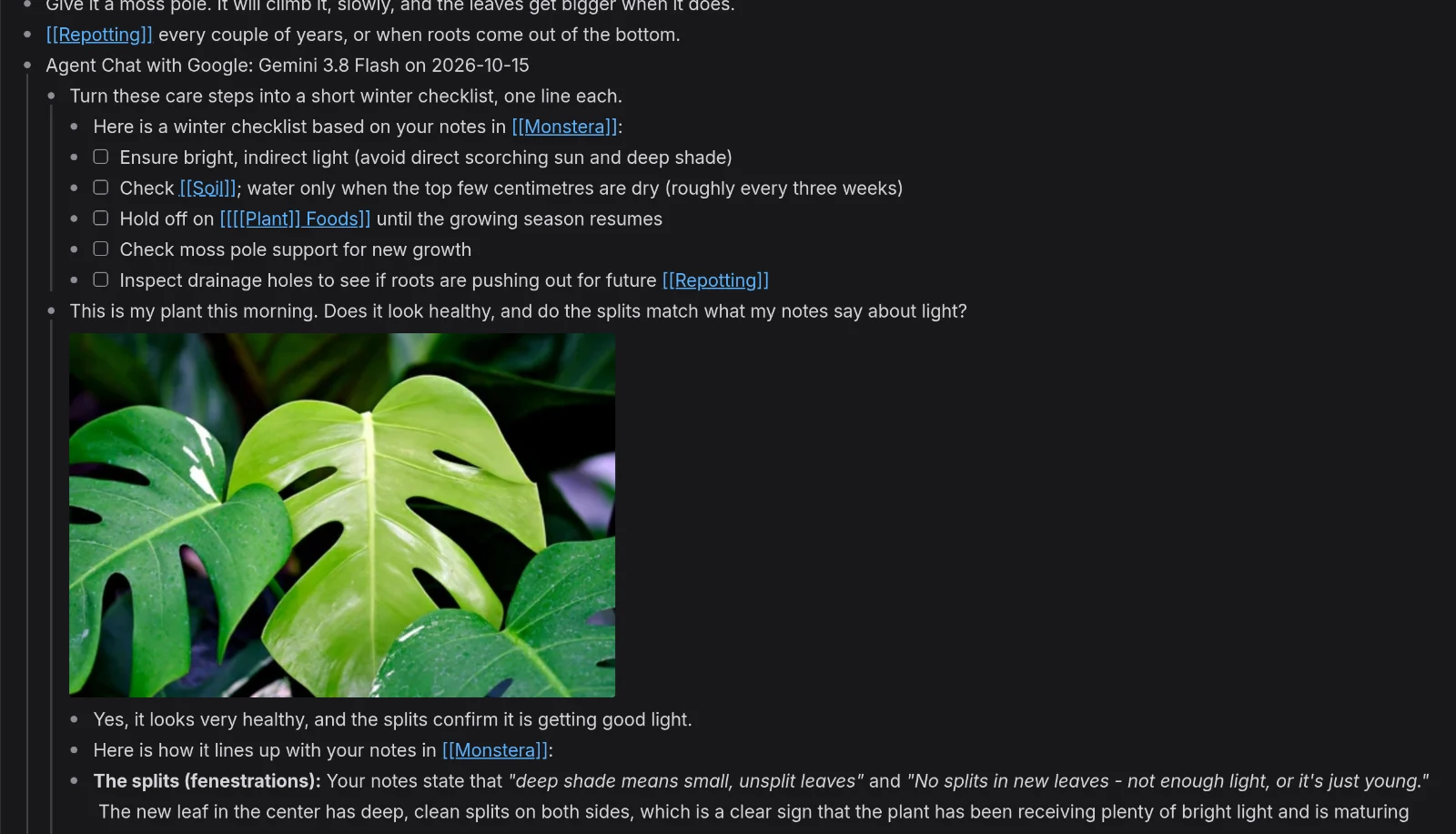
The + button beside Send attaches images, and you can paste one straight into the question too. Here I attached a photo of a monstera leaf and switched the context to This document, so the model could compare the photo with what my notes say.
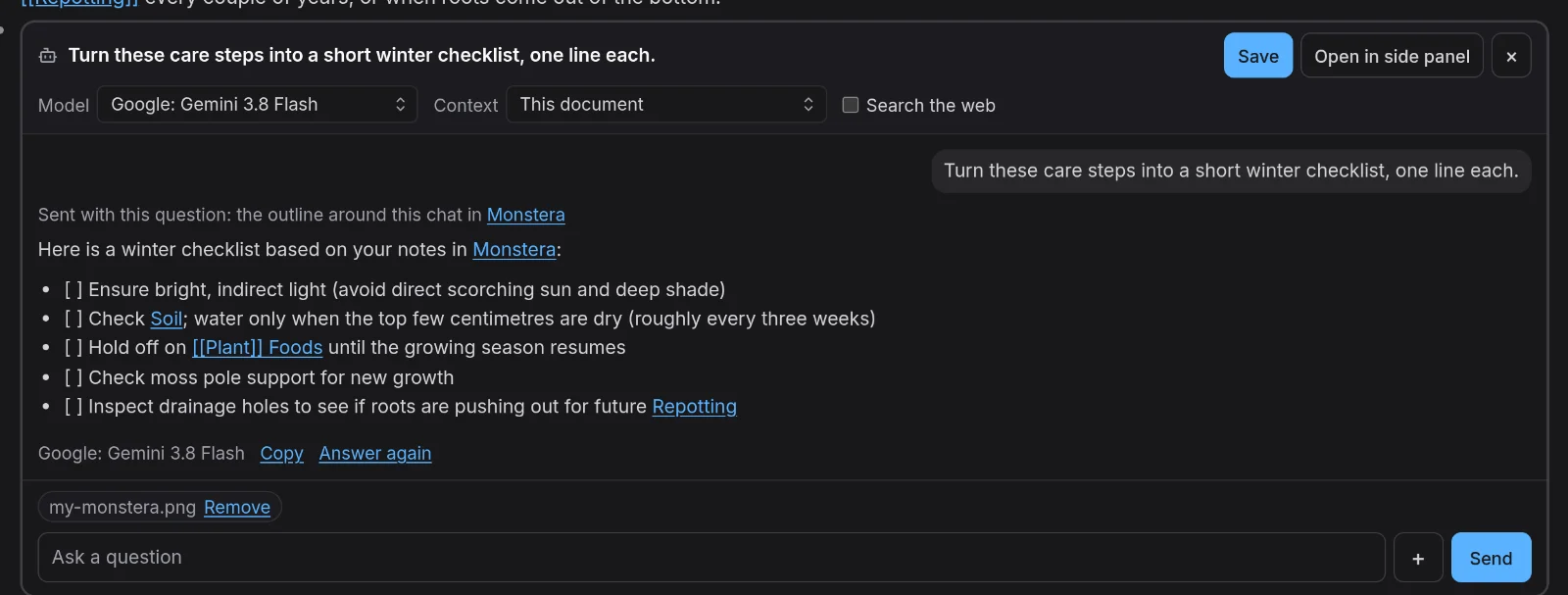
The answer checks the photo against the notes, quoting the page's own lines about light and splits.
Save the turns worth keeping
A chat is kept on the device you had it on, and it never syncs. To keep part of it, select Save. Each turn gets a box at its top left, with Select all and Deselect all above the button that saves them. While the chat stays open your ticks are kept, and a turn unticks itself once it's saved, so saving again never writes it twice.
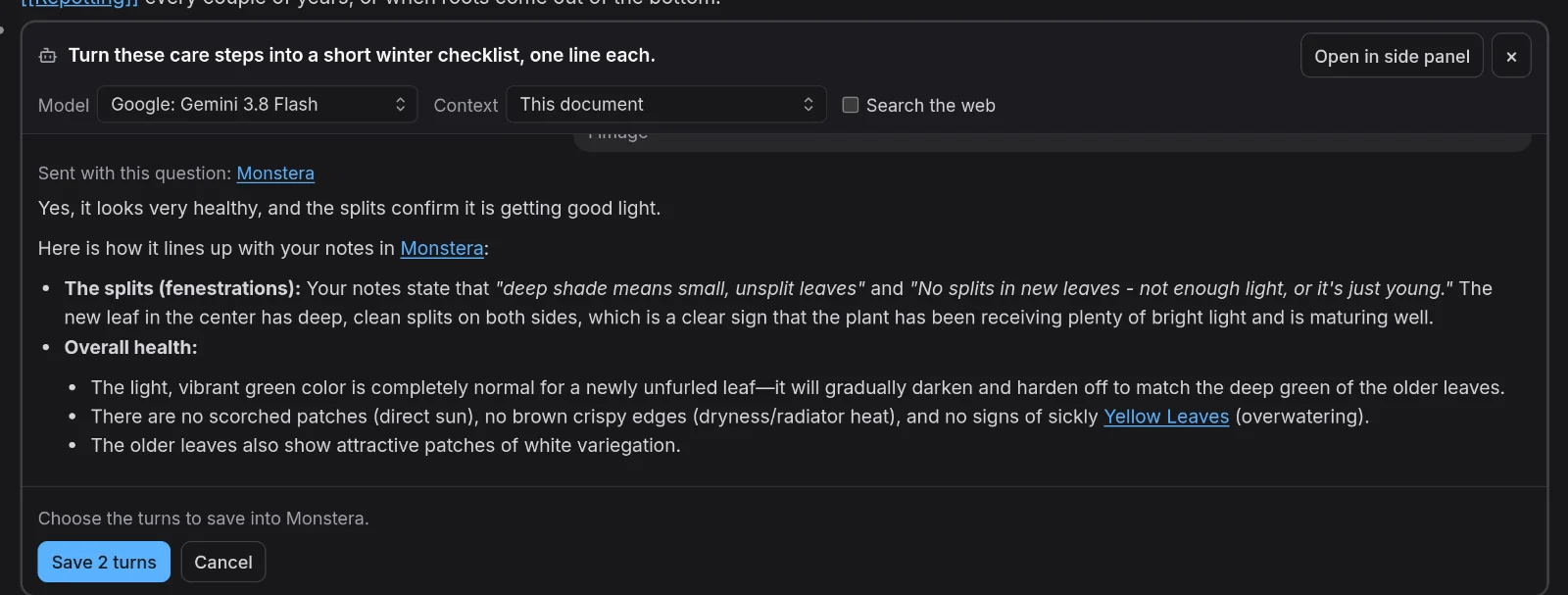
The turns go into the document where you typed /Agent, under a bullet that names the model and the date. Each question is a bullet with its answer nested under it, and the answer's checklist items become real tasks. The photo is saved into the graph's own assets folder and shows inline, like any image you drop into a page. A bar shows the progress while images are saved. From here it's just your notes, so edit, move or delete any of it.
Ask the whole graph
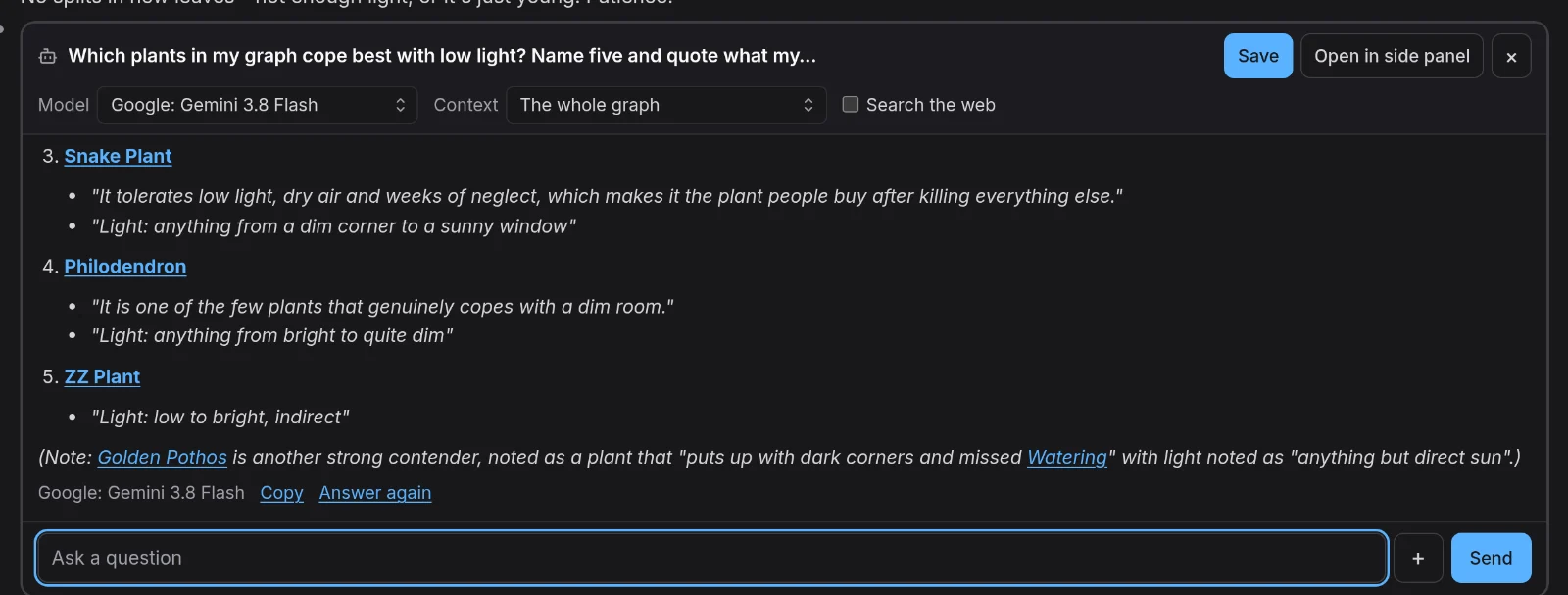
The whole graph gives the model read-only tools: search, read a document, list documents, follow links and backlinks, and list tasks. It reads what it needs, and the chat lists every search and read as it happens. I asked which plants in my graph cope best with low light. It searched the graph, read the plant pages it found, and quoted each one.
Search the web
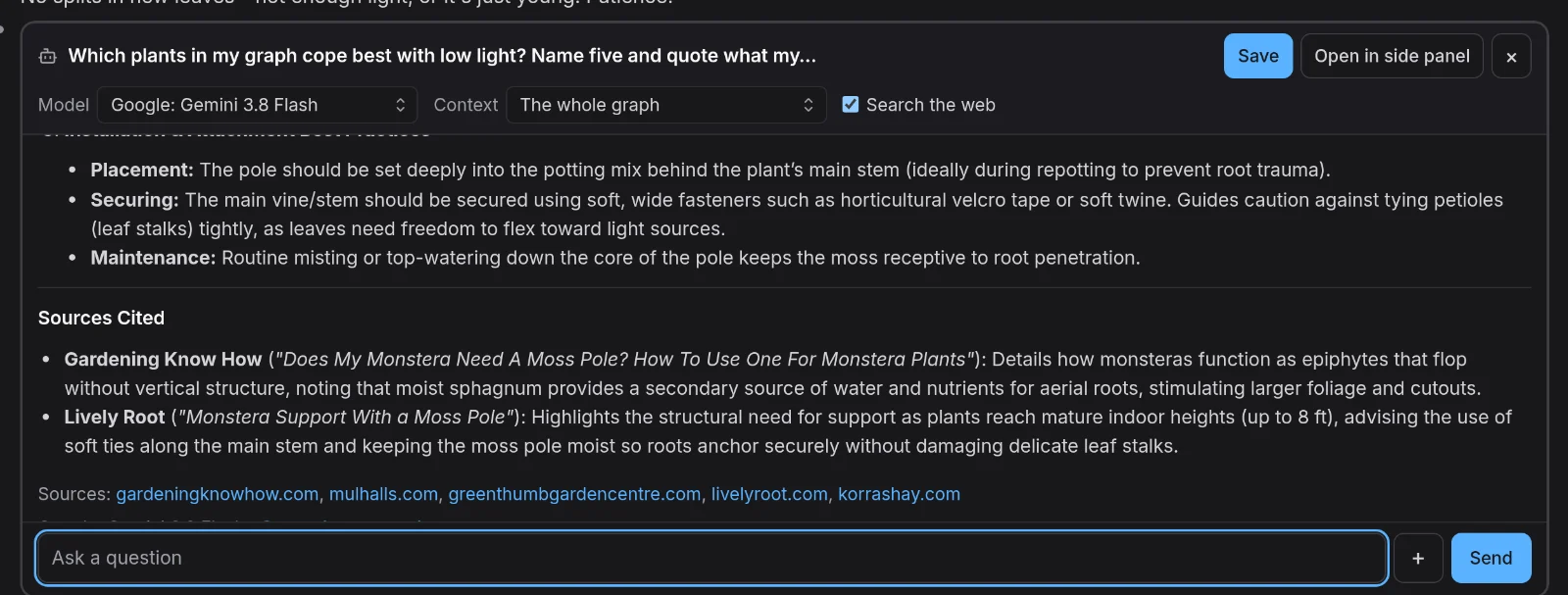
Tick Search the web and the provider runs a web search while it answers. That works with Anthropic, OpenAI and OpenRouter, and each provider charges for it. The sources are listed under the answer. The setting on the Agents tab decides how new chats start, and each chat can switch it on or off for itself.
Come back to a chat
Typing /Agent again in a document that already has chats offers them first, so you can carry on rather than start over.
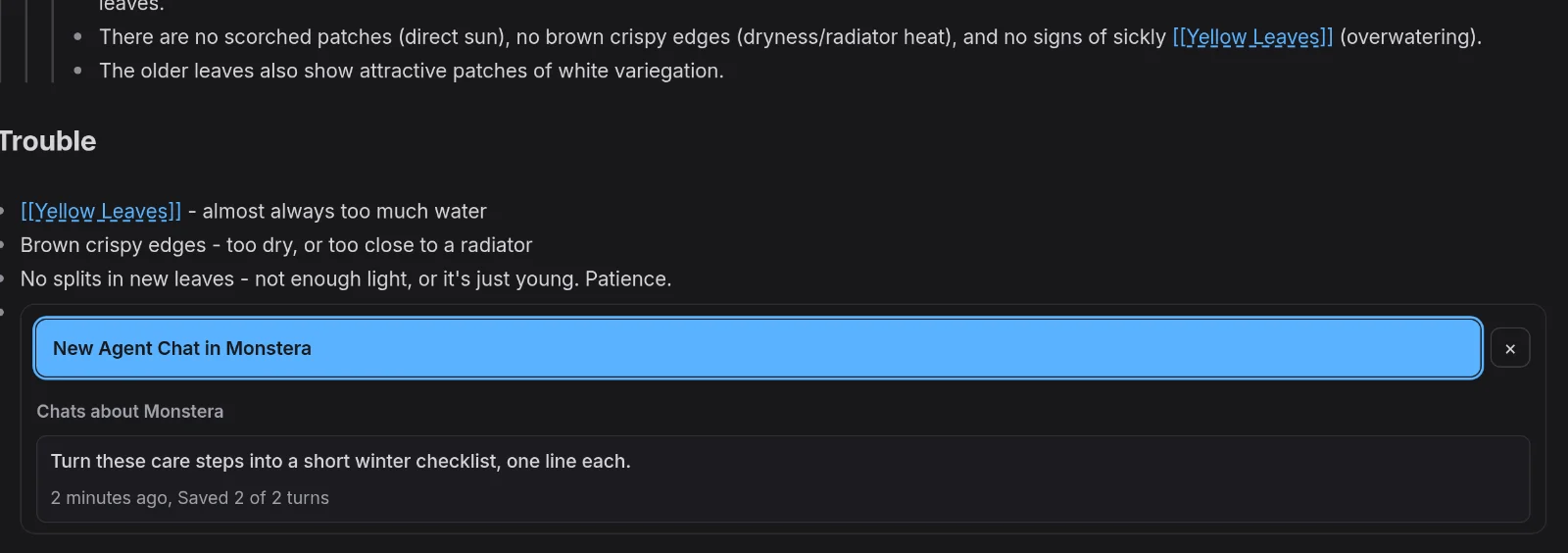
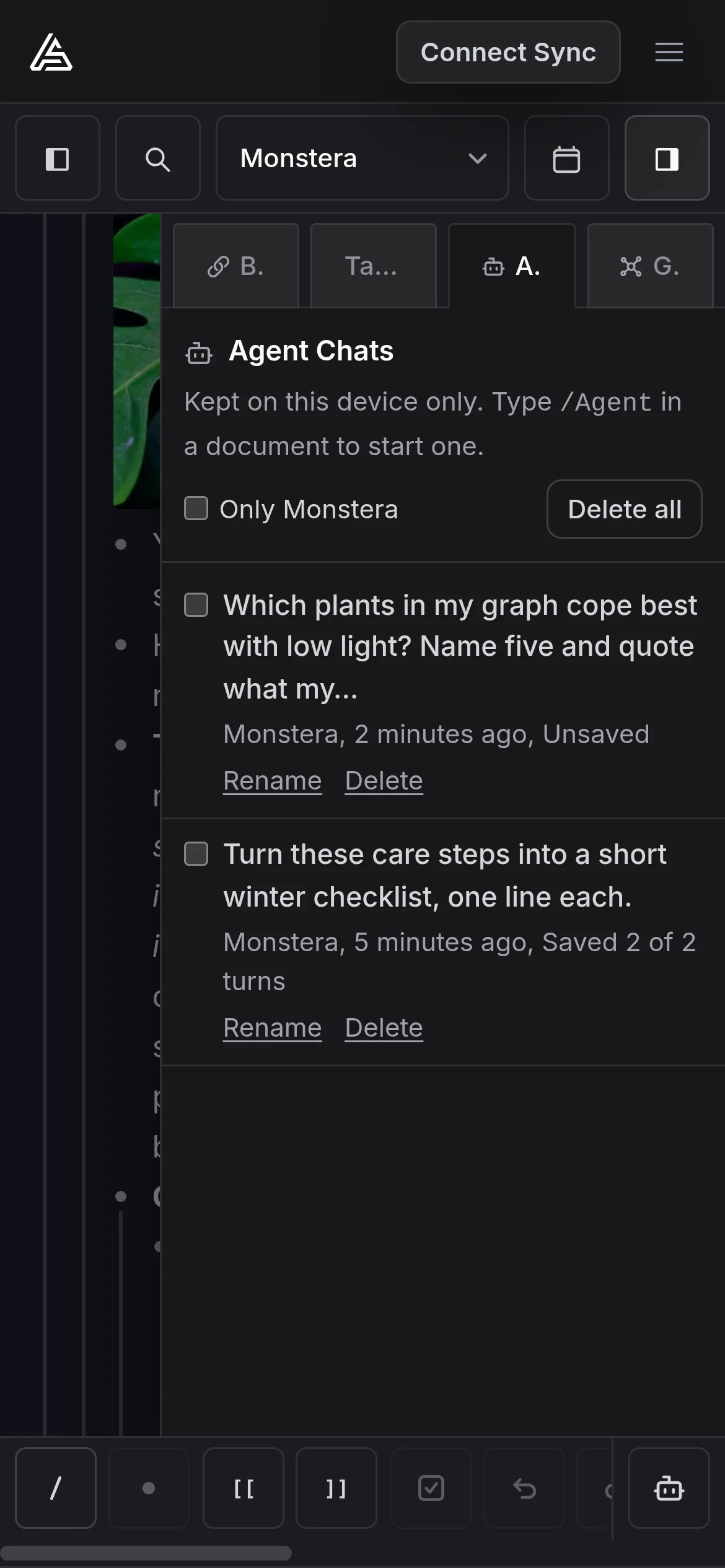
The Agent Chats tab in the right sidebar lists every chat of the graph on this device, saved or not. Select one to read or continue it, or rename and delete them there. Open in side panel moves an open chat into that tab, so it stays beside the document while you scroll.
On a phone
On a phone, Agent Chat has a button pinned at the right end of the command bar. While you're typing, it opens a chat at the cursor. Otherwise it opens at the end of the document. A chat opened in a journal entry that doesn't exist yet leaves it uncreated until you save turns into it, on a phone or a computer, and whether you used the button or typed /Agent.
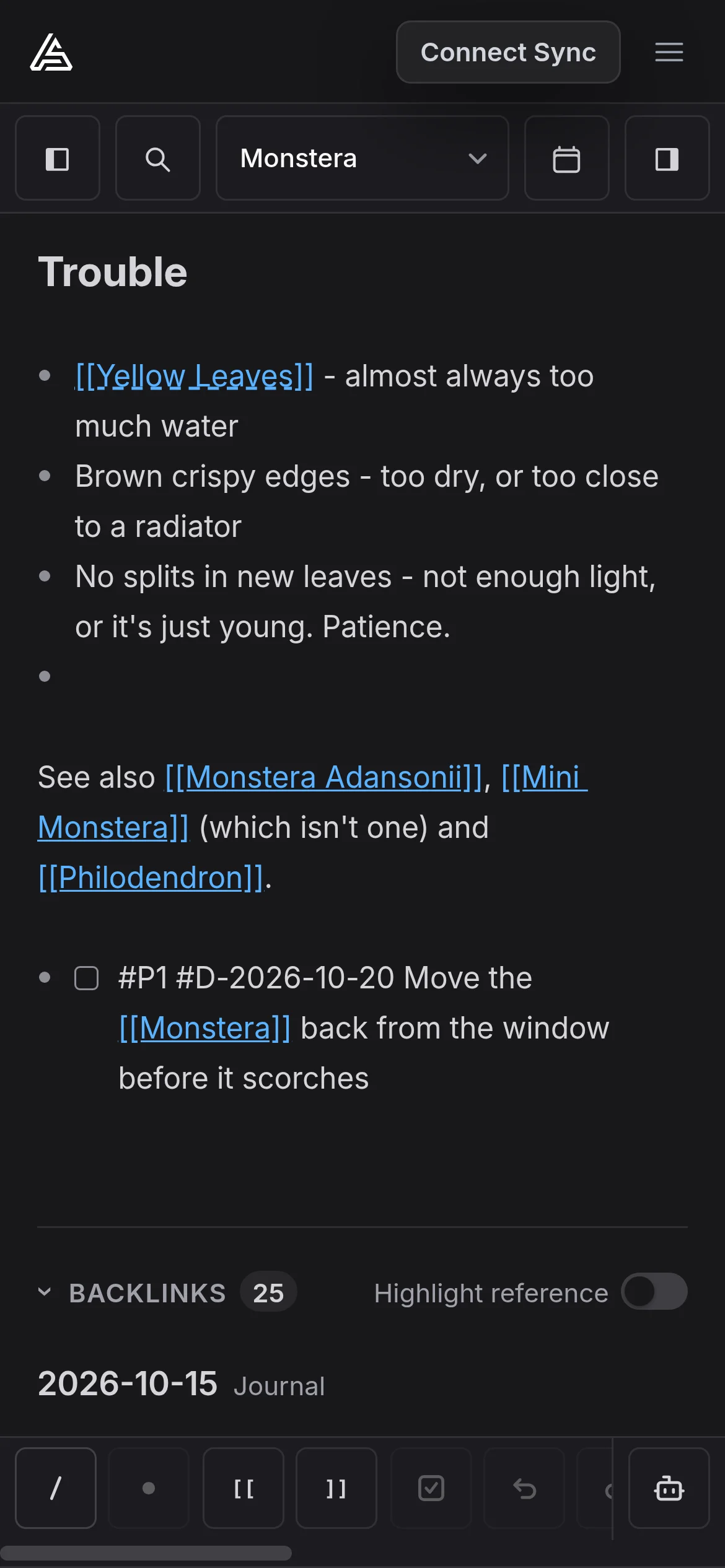
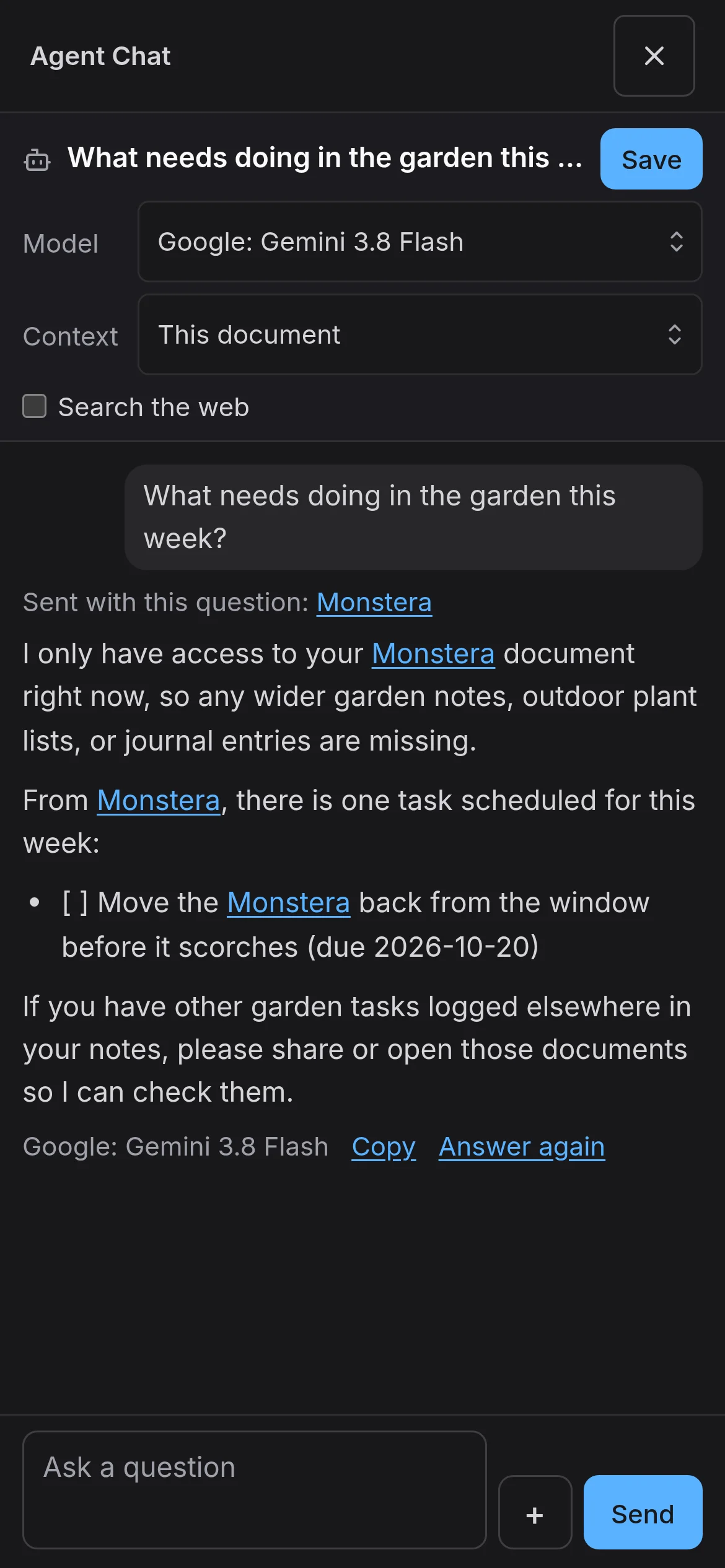
The chat opens over the whole screen. In this one the context was This document, so the model says it can only see the Monstera page, and answers from that.
Switching it off
Agent Chat is an extension that comes with EtherPK. If you'd rather not have it, switch it off under Settings > Extensions, and the /Agent command, the button and the sidebar tab all go. Your chats stay on the device and come back if you switch it on again.
The full guide is in the docs: Agent Chat. To have an agent change your notes, rather than only read them, use the Headless Client with Claude Code, Codex or Cursor.