AI Agents in EtherPK - MCP Server and Agent Chat
I use AI agents in two ways. For coding it's TUIs such as Claude Code, and for day-to-day questions I want an answer beside whatever I'm writing. EtherPK has a mode of agent integration for each, on its own sub-tab of the Agents tab in Settings.
| MCP Server | Agent Chat | |
|---|---|---|
| Use it to | Let an AI agent on your device read and modify a graph | Chat with a language model about your notes from inside EtherPK |
| The agent can | Read and modify | Only read and respond |
| The agent sees | The graph, and a count of protected documents without their names or text | Only the context you choose in each chat session |
| You need | An agent such as Claude Code, Codex or VS Code, and Node.js | A model connection, local or via a remote provider |
MCP Server
An AI agent on your device, such as Claude Code, Codex or VS Code, can read and modify a graph by connecting to the MCP server that the EtherPK Headless Client runs.
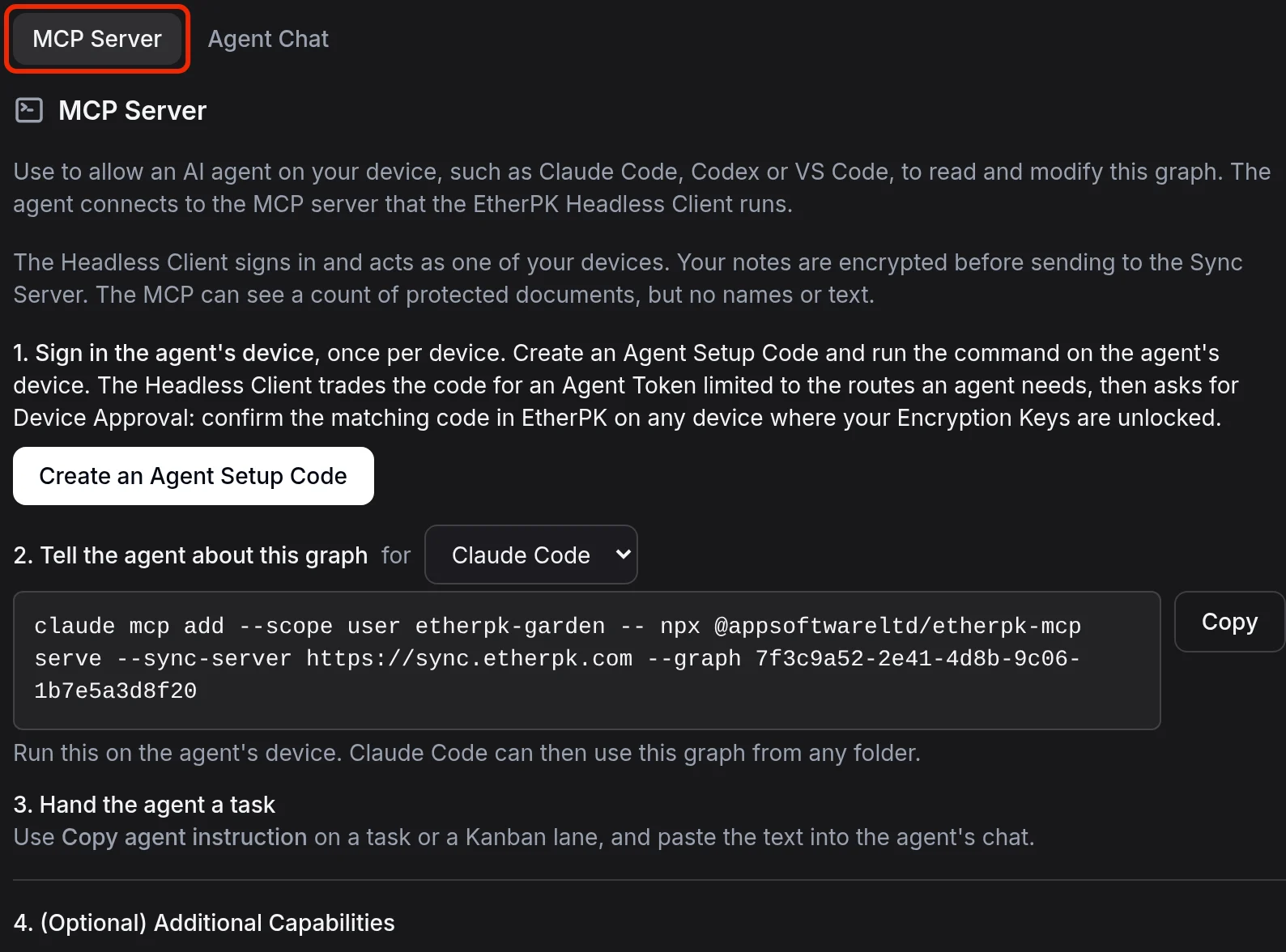
The Headless Client signs in and acts as one of your devices. The MCP server runs on the same device as the agent because no hosted service could search or read your notes for it: your device encrypts them before they go to the Sync Server. The agent can see how many protected documents the graph has, but not their names or text.
Connect an agent to a synced graph
The tab writes the commands for you, with your graph's id filled in:
-
Sign in the agent's device, once per device. Create an Agent Setup Code and run the command it gives you, then confirm the matching code in EtherPK on any device where your Encryption Keys are unlocked.
-
Tell the agent about this graph. Pick your agent from the list. For Claude Code the command looks like this:
claude mcp add --scope user etherpk-garden -- npx @appsoftwareltd/etherpk-mcp serve --sync-server https://sync.etherpk.com --graph <graph id> -
Hand the agent a task, which I'll come to below.
The --scope user is there because of my own setup: without it Claude Code limits a server to the folder you ran the command in, so my graph only worked from certain directories. Naming the server after the graph lets you connect several, since Claude Code refuses a second etherpk in that one user-wide list. Codex has its own command, and Cursor and VS Code each get the JSON block for their mcp.json, with a note saying where it goes.
Connect an agent to a local graph
A local graph is a folder of plain Markdown files, so an agent can open it like any other project, with nothing to connect. EtherPK keeps an AGENTS.md at the top of the folder to tell the agent how the notes are written and what to leave alone. The MCP server is optional here: it adds search, backlinks and task tools, and needs no sign-in.
Hand the agent a task
Use Copy agent instruction on a task or a Kanban lane, then paste the text into the agent's chat. What it says depends on where the graph is. On a synced graph it looks like this:
EtherPK task from the graph "Garden" (<graph id>)
Task: Water the beans
Reference: etherpk:/g/<graph id>/d/<document>#task=<line>-<fingerprint>
This is not a web address. Use the EtherPK MCP server connected to "Garden": read_task with this whole text to read the task and its detail, set_task if you are asked to change its status, add_task_note to record what you did.
If you have no EtherPK MCP server for this graph, stop. Do not search this device for it or work from a folder copy, which EtherPK overwrites. Tell the user to connect you from the Agents tab in EtherPK's Settings, which they can open at <EtherPK address>/g/<graph id>?settings=agents
The last line tells an agent with no way to reach your graph to stop and send you to the place that sets it up, and not to search your disk for your notes. On a local graph the text names the task's file instead, so the agent can work from it with or without the MCP server.
The reference finds its task by line first and then by words, so it still works after you add lines above the task or change its tags. If you reword the task, copy a fresh instruction.
Additional capabilities
The last step on the tab is 4. (Optional) Additional Capabilities, and you don't need any of them to work on a graph:
- Search by meaning installs an embedding model, once per device, so the agent can search by what a passage means as well as by its words.
- Publish diagrams installs the browser that a publish uses to draw Mermaid diagrams.
- Add the EtherPK skill to your agent only matters when you want an agent to create a new blog, docs or wiki folder, check it and publish it. An agent working on an existing graph gets the format from the MCP server or the folder's
AGENTS.md. - Publish from the agent's machine publishes once and remembers the folder, and from then on the agent's publish tool writes there.
Agent Chat
To chat with a language model (local or via a remote provider) about your notes from inside EtherPK, type /Agent in a document or click the Agent button. The model can only read and respond, and it sees only the context you choose in each chat session. Chats stay on the device you had them on, and nothing goes into a document unless you save it there.
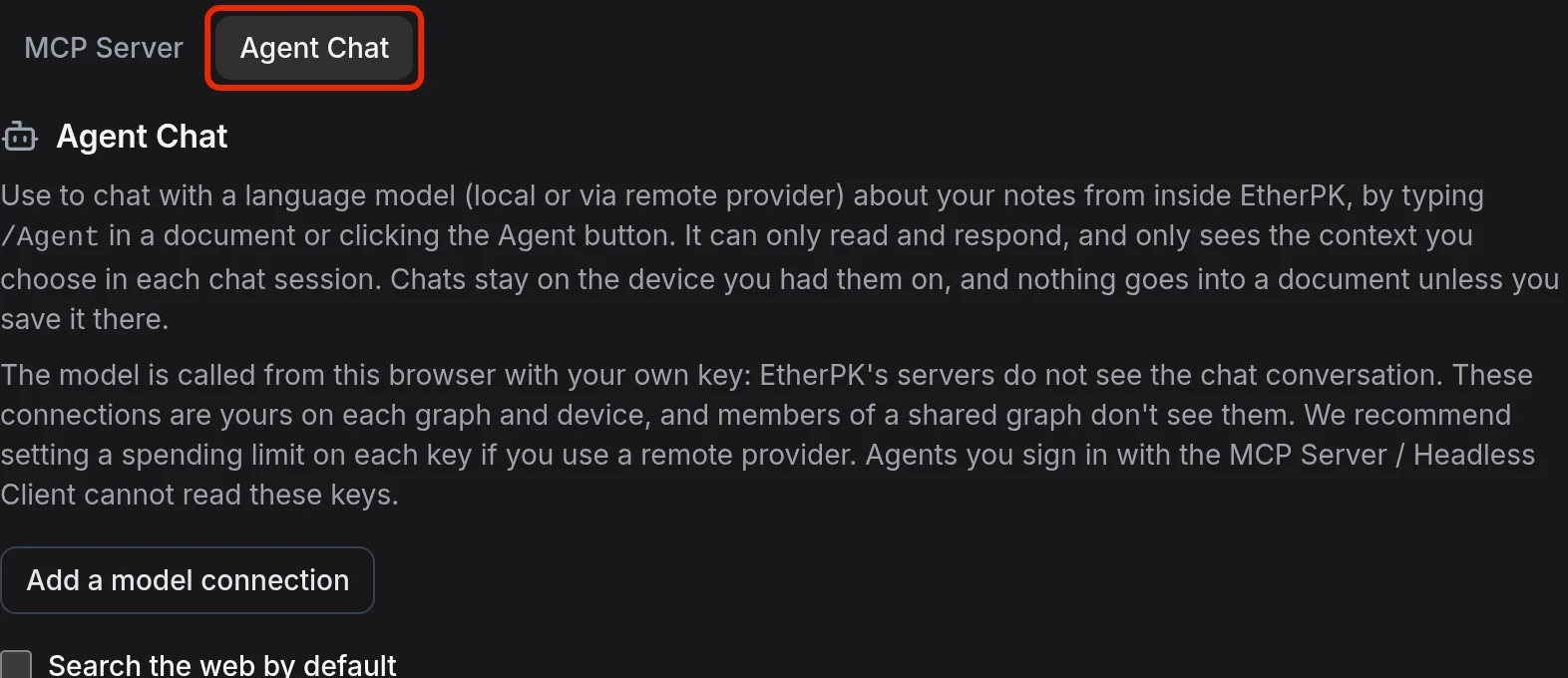
Your browser calls the model with your own key, so EtherPK's servers don't see the conversation. These connections are yours on each graph and device: members of a shared graph don't see them, and agents you sign in with the MCP Server / Headless Client can't read your keys. If you use a remote provider, I'd recommend setting a spending limit on each key.
As context you can give the model nothing else, the outline around the chat, the document, the document and the pages it links to, or the whole graph. When an answer is worth keeping, you choose which turns to save, and they arrive as ordinary outline blocks. There's more on this, with pictures, in Agent Chat - Ask a Language Model About Your Notes.
Which one to use
If you want something changed in your notes, or a list of tasks worked through, connect an agent to the MCP server. If you want a quick answer beside what you're writing, use Agent Chat. You can use both on the same graph.
You can try Agent Chat on the demo graph with your own key. That graph stays inside the browser, where an AI agent on your device can't reach it, so for the MCP Server you need a local or a synced graph. The full guide to both modes is in the docs.