PDF Reading, Annotation and Signing Inside Your Markdown Notes
EtherPK (https://app.etherpk.com) now reads, annotates, signs and manages PDFs:
Click a link to a PDF in your notes and it opens in a tab inside the app, where you can read it, mark it up, fill in forms, sign and save a copy. You can even ask your Agent about content if you have configured AI Agent models in EtherPK. Using the PDF view as a reader is a 1st class use case and we have added features for remembering position and bookmarking pages in your PDFs.
EtherPK has added 1st class PDF tools because PDF reading and management has always felt so disconnected in Notes apps and PKMS solutions. Copying, uploading, saving copies, removing passwords has always been laborious, and we need a tool that enables all of this in one place, alongside the rest of your notes and personal knowledge. The PDF functionality also aims to work well as a reader - getting as much out of your way as possible on the screen, and making book marking and picking up where you left off really simple. The PDF reader works well on desktop, tablets and mobile devices, with pinch zoom for working on small screens.
To demonstrate, a sample PDF has been added to the demo graph: The Houseplant Handbook, 14 pages on keeping plants alive, with a form at the end. Everything in this post is that one PDF being read, marked up and signed, so you can follow along in the demo, where a link to the sample PDF near the top of the first page. If you've opened the demo before, choose Reset demo in the bar above it to get the new page.
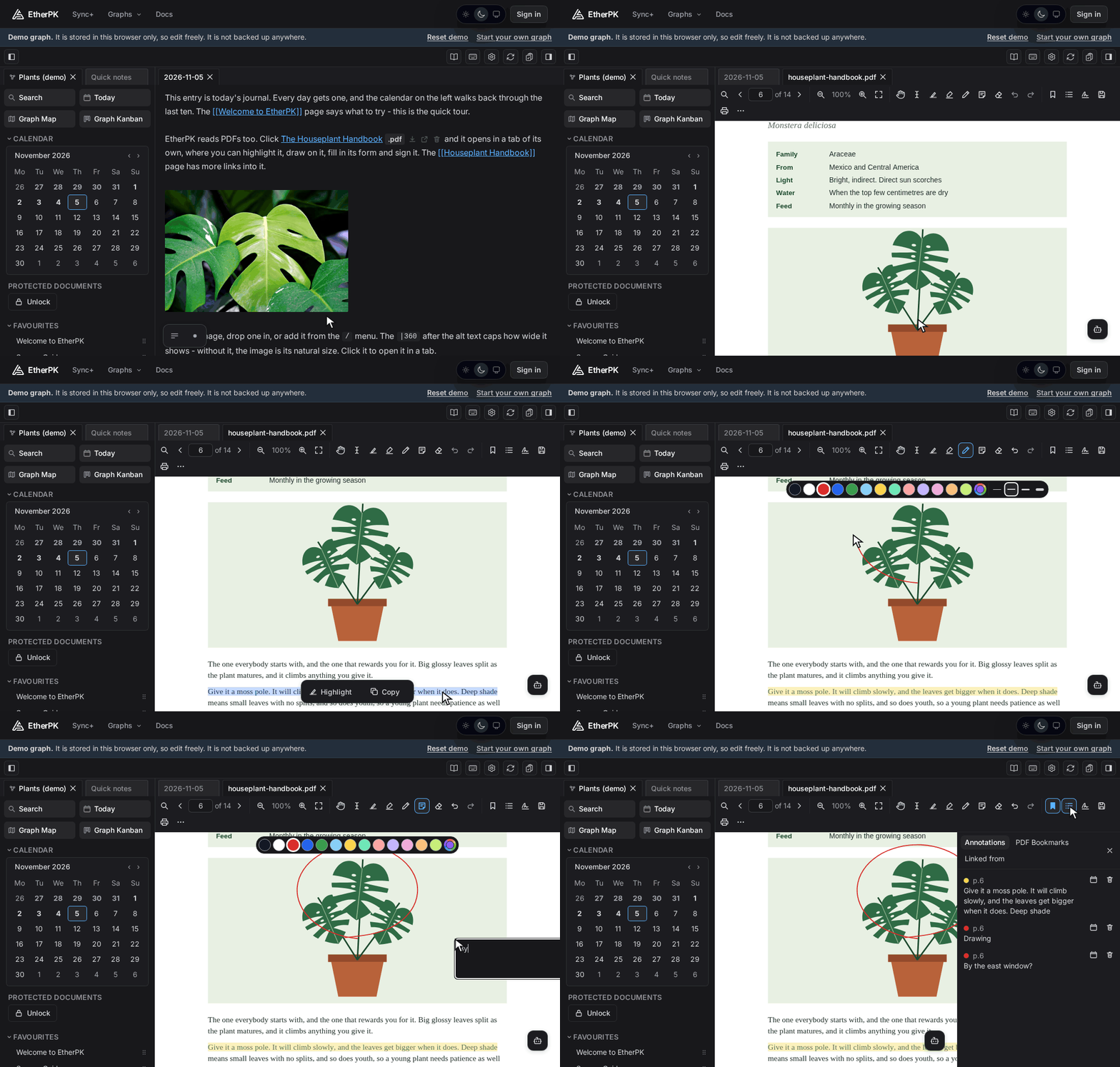
Open it from your notes
A PDF in your graph is a file like any other, and a link to it is an ordinary markdown link. The demo's [[Houseplant Handbook]] page has one on its first bullet, with a .pdf pill and buttons to download, open and delete the file.
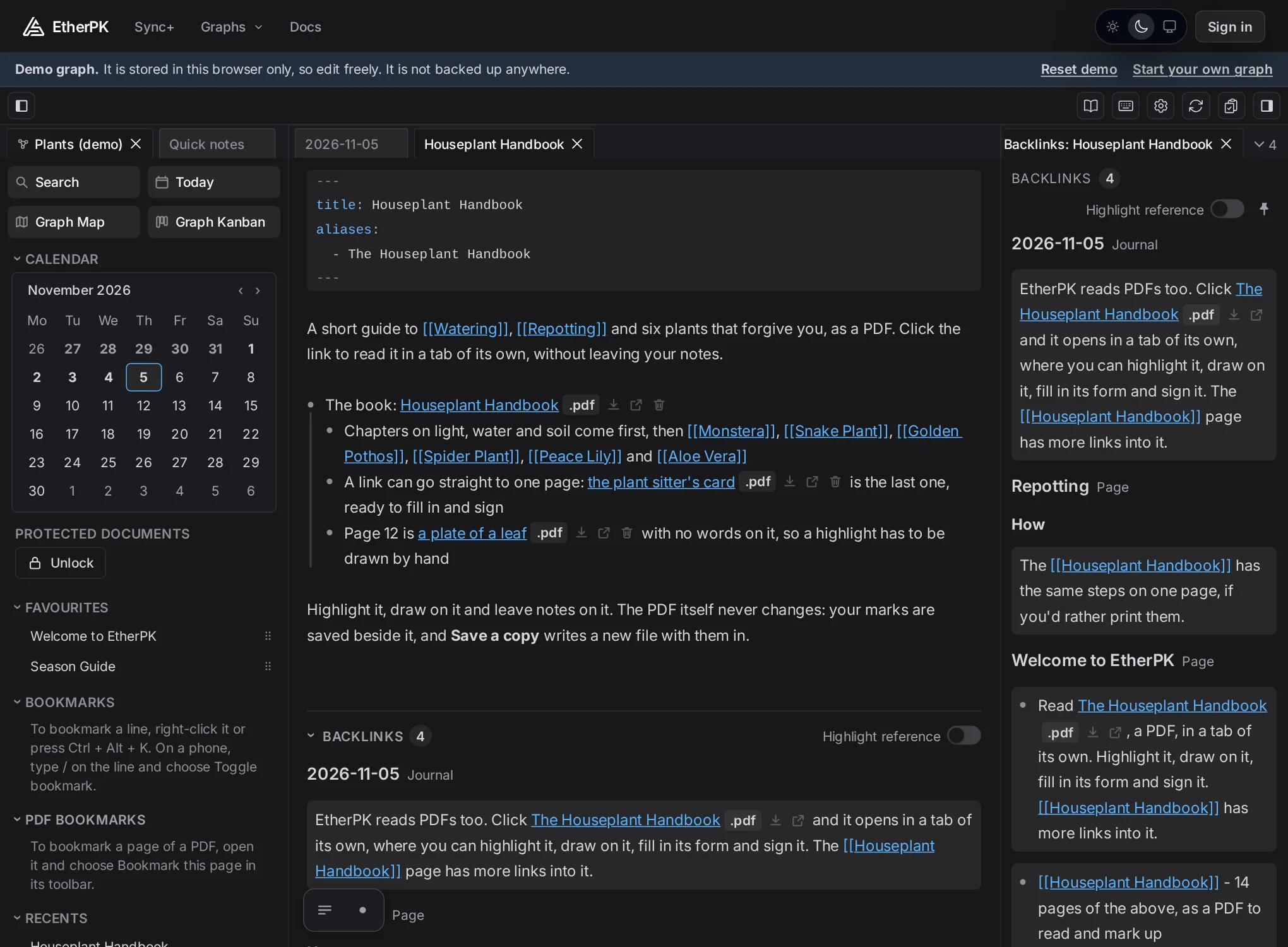
Click the link or the pill and the PDF opens in a tab beside your notes. You stay in the app, and the file doesn't go through the browser's own PDF viewer.
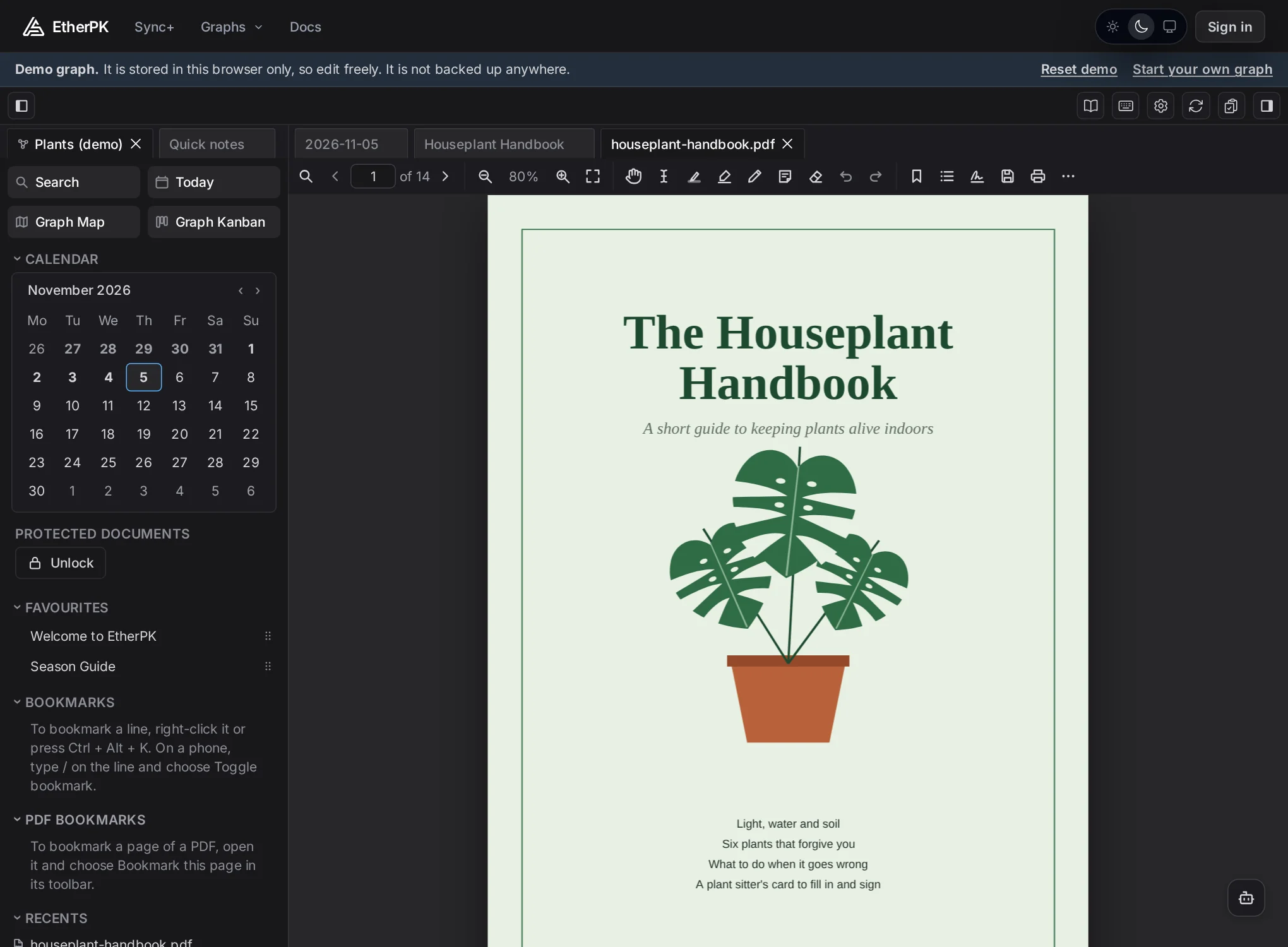
The toolbar has what you'd expect from a reader: a page box, previous and next page, zoom in and out, and fit to width. Ctrl and the mouse wheel zoom the PDF rather than the whole app. Links inside the PDF work, so the handbook's contents page takes you to each chapter.
Ctrl+F opens a find bar that counts the matches and marks them on the page. Find looks in this PDF only: the words in a PDF aren't in EtherPK's Search, and a scan has no text to find.
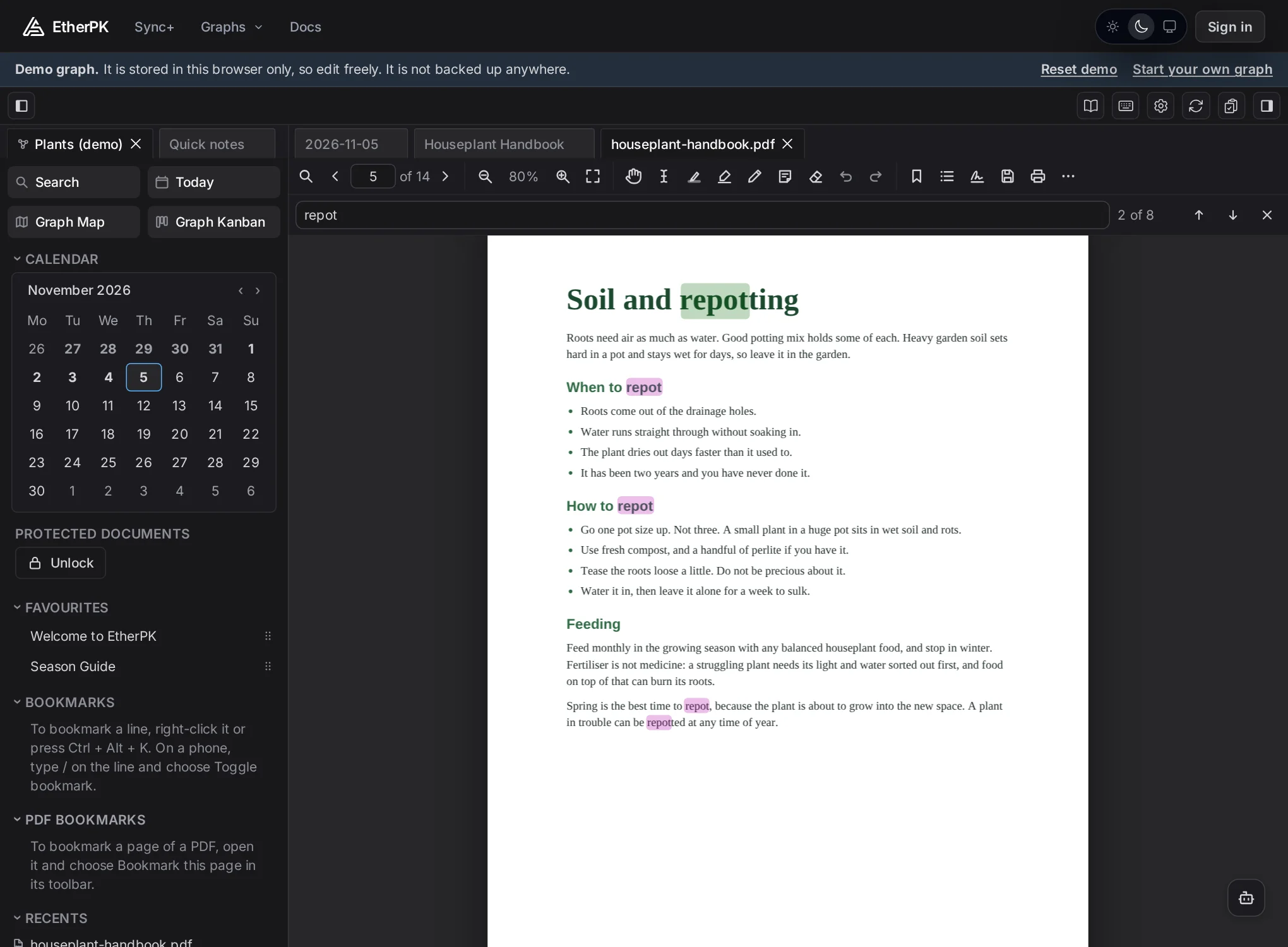
It remembers where you were
Close the tab and come back in a week, and the PDF reopens at the page and position you reached. On a synced graph your reading place follows you between devices. On a local graph it stays on the device, so reading a chapter doesn't show up as a change in Git.
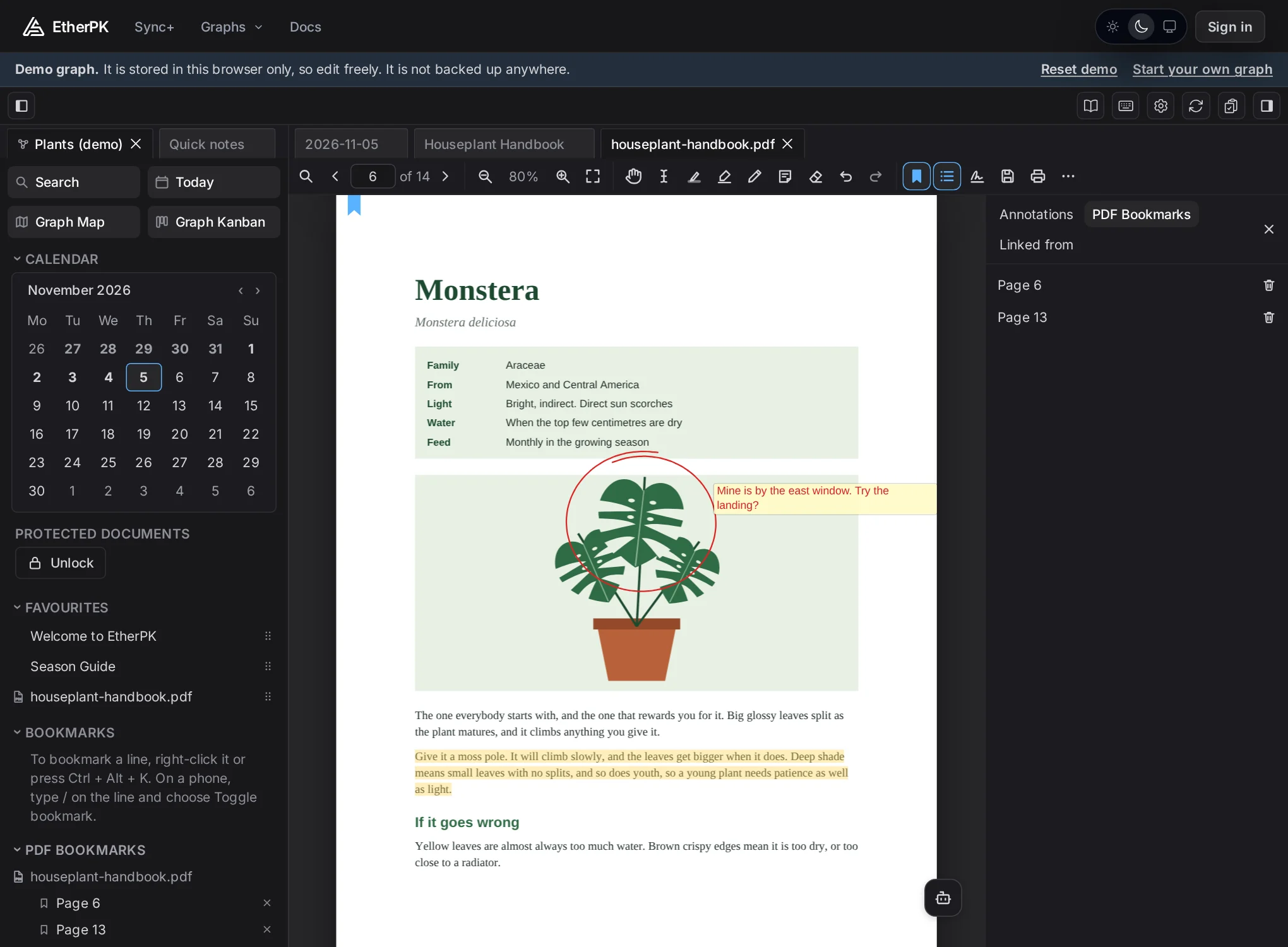
For pages you want to find again, Add a PDF Bookmark puts a ribbon in the corner of the page. Your bookmarks show up in the panel beside the PDF, and in a PDF Bookmarks section of the sidebar that covers every PDF in the graph. The PDF itself also appears in the sidebar under Recents and, if you add it from the More menu, under Favourites, with a small PDF icon in both.
Mark it up
There are six tools, and only one can be on at a time.
- Select text lets a finger or a stylus drag across text. A mouse can do that with or without it.
- Highlight text turns whatever you select into a highlight.
- Freehand highlighter lets you draw a highlight by hand.
- Pen draws with a mouse, a finger or a stylus. It steadies the line as you draw, and with a stylus the line gets thicker as you press harder.
- Typed note puts a note where you click.
- Eraser takes away a whole stroke, highlight or note.
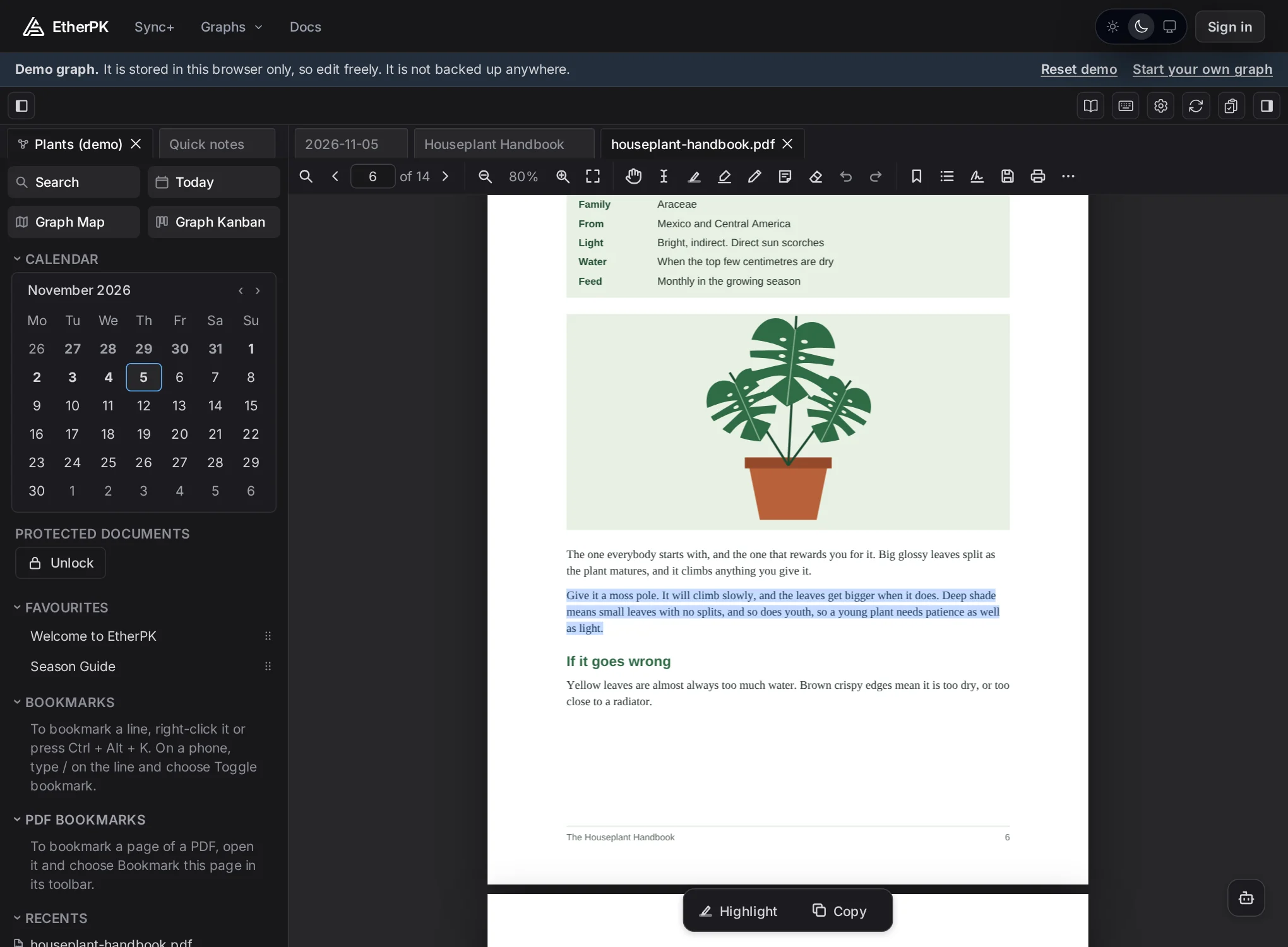
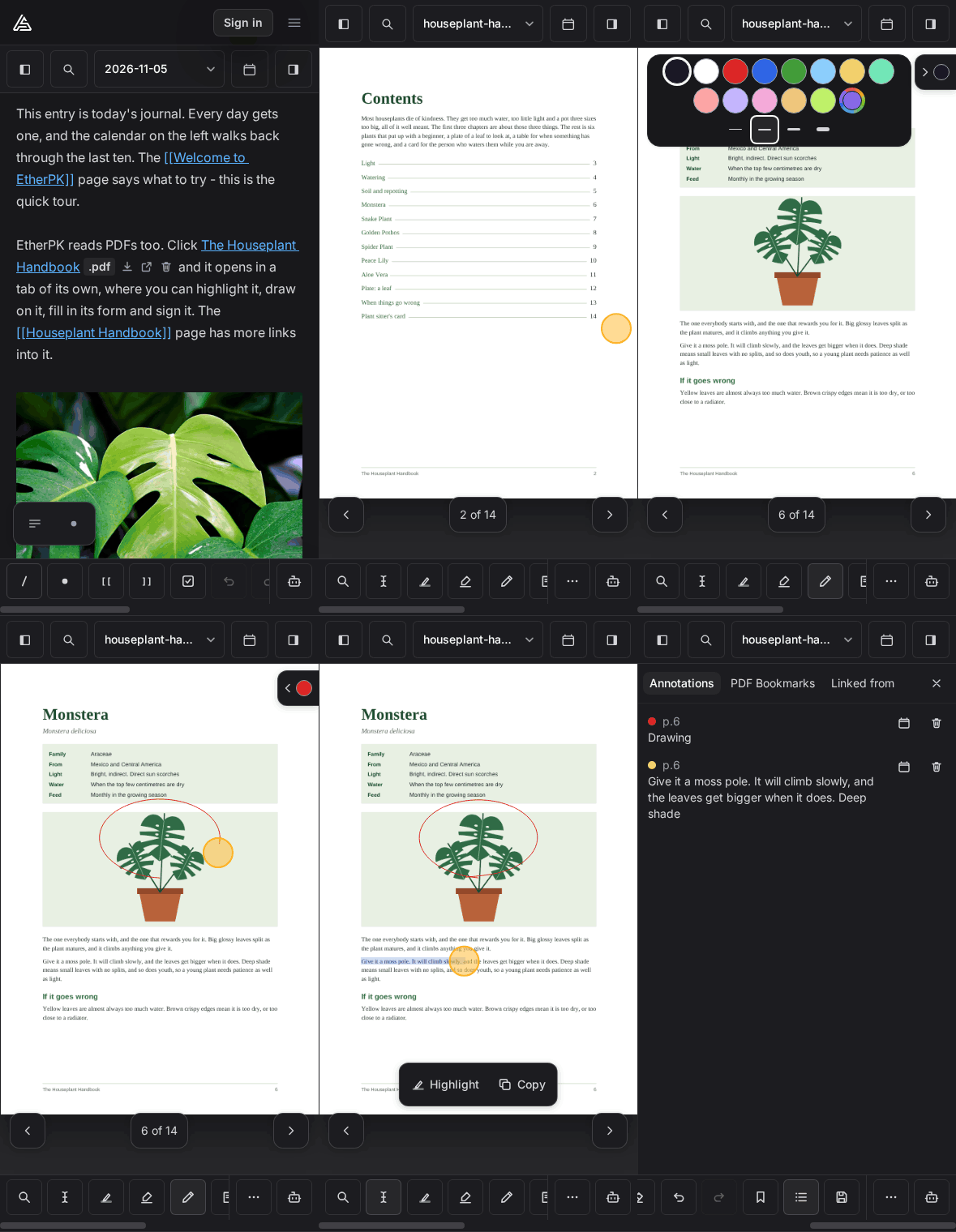
You don't need a tool on to highlight or copy: select some text with a mouse and a small bar appears over the page with Highlight and Copy. The button at the bottom right is for asking an agent about the selection, which I'll come to.
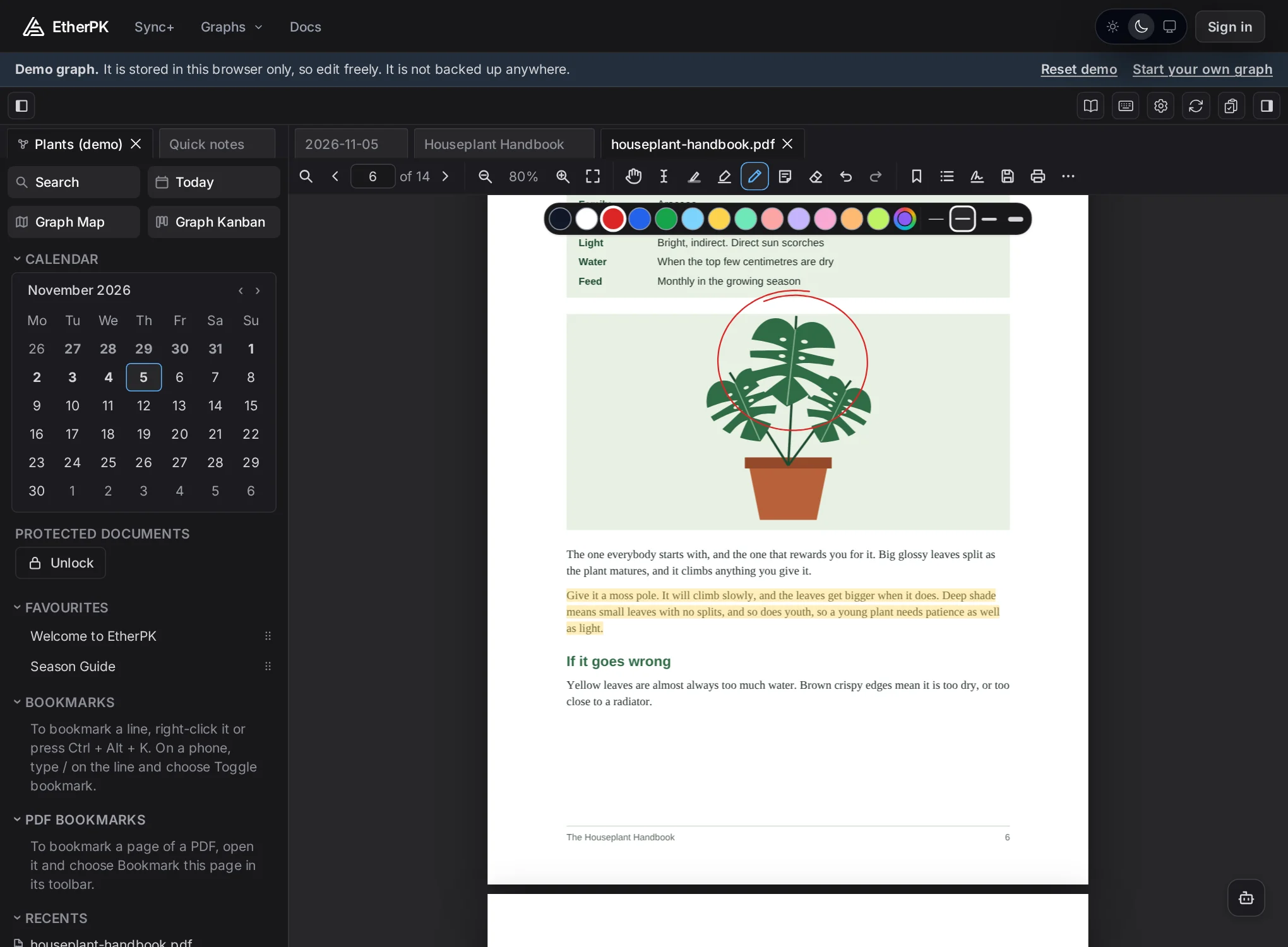
The drawing tools add a row of colours and four line thicknesses over the page. There's black, white, red, blue, green and eight pastels, and a picker for any other colour.
Undo and redo go to the page they change. If you drew on page 4 and you're now on page 9, undo takes you back to page 4 and you see the stroke go.
There's no save button: your annotations are saved beside the PDF as you make them, and they're still there after a reload. The PDF itself never changes. In a local graph the annotations sit in a small JSON file under etherpk/, named by the hash of the PDF's bytes. In a synced graph they go in a private document that follows you to your other devices, and EtherPK doesn't show them to the graph's other members.
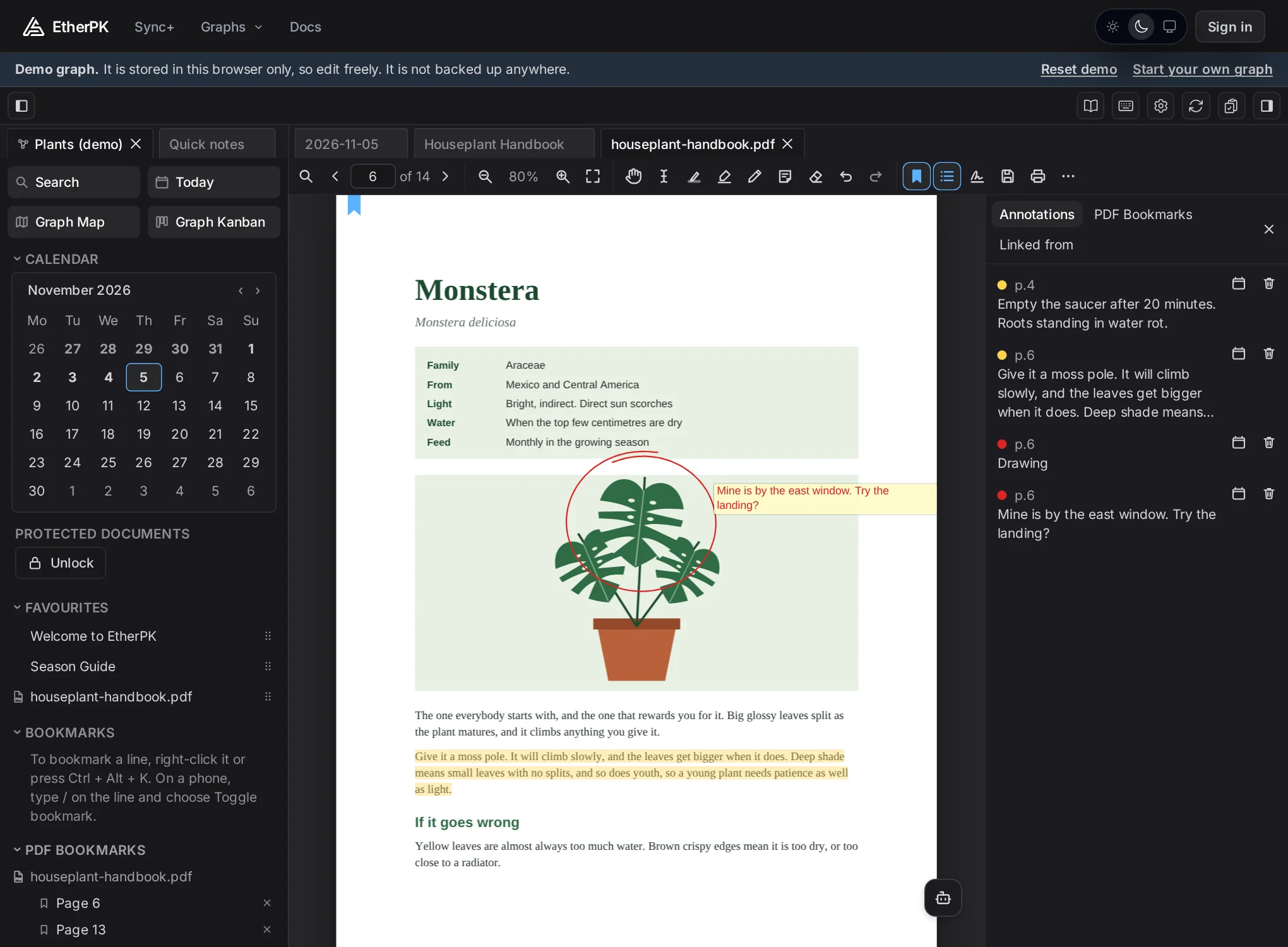
The panel lists everything you've marked, by page, and clicking a row takes you to that page.
Back into your notes
A separate PDF reader can't do this part: Copy to journal on a row of the panel writes the words into today's journal, with a link back to the page.
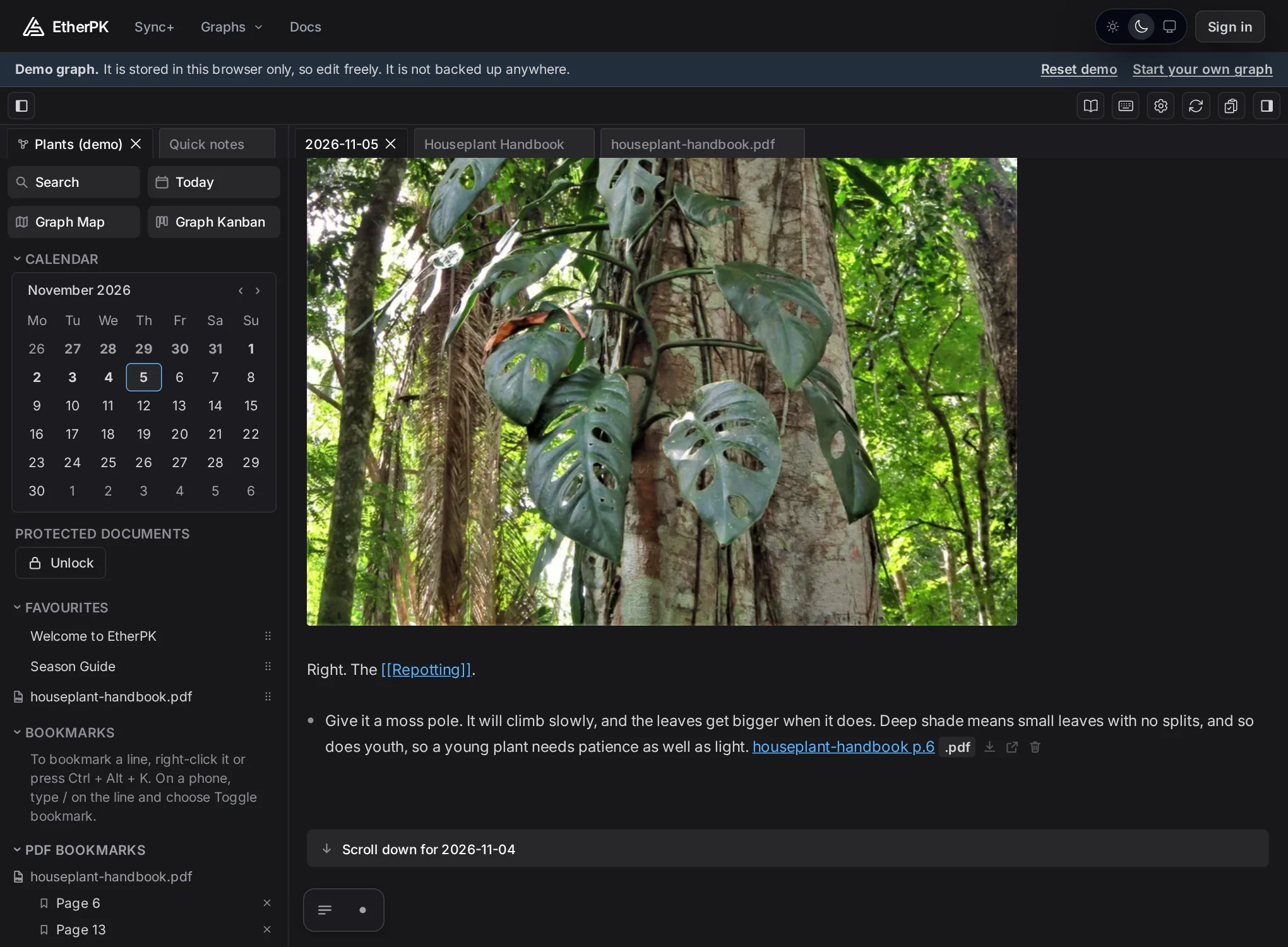
It's an ordinary line in an ordinary note, so Search finds the words and it can sit under a project or a task like anything else you write. You can write that kind of link yourself too. Add #page= after the file name and it opens the PDF at that page:
the plant sitter's card../assets/houseplant-handbook.a1b2c3d4.pdf#page=14
The panel's Linked from tab goes the other way and lists the documents that link to this PDF.
A page with no text
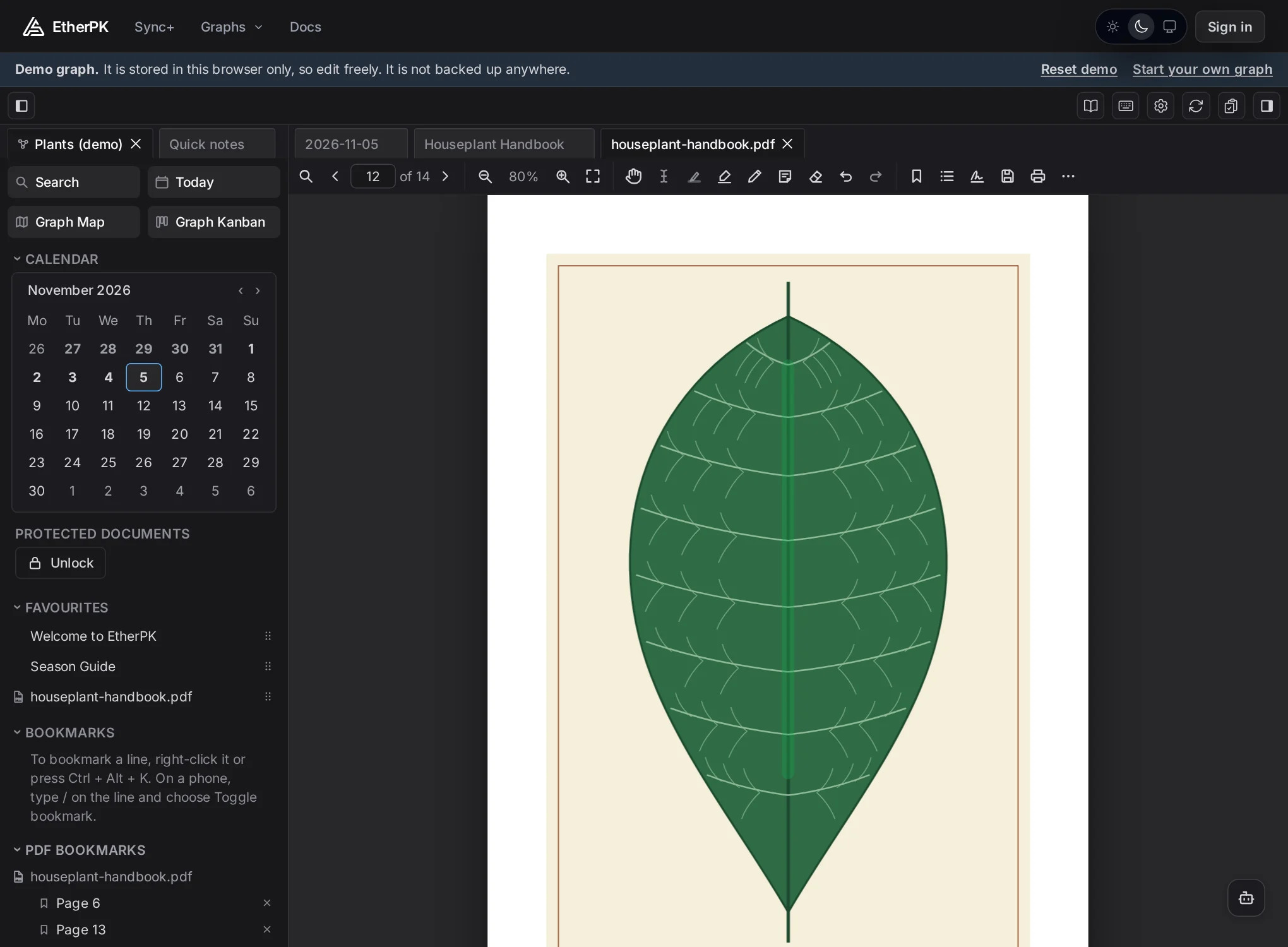
Page 12 of the handbook is a plate of a leaf with no words on it, which is what a scanned PDF looks like to the reader. Select text and Highlight text switch off on a page like this, so you mark it with the Freehand highlighter.
Ask a model about a passage
Select some text and press the Agent Chat button or Alt+A. A chat opens with the text as its message and the cursor after it, ready for your question.
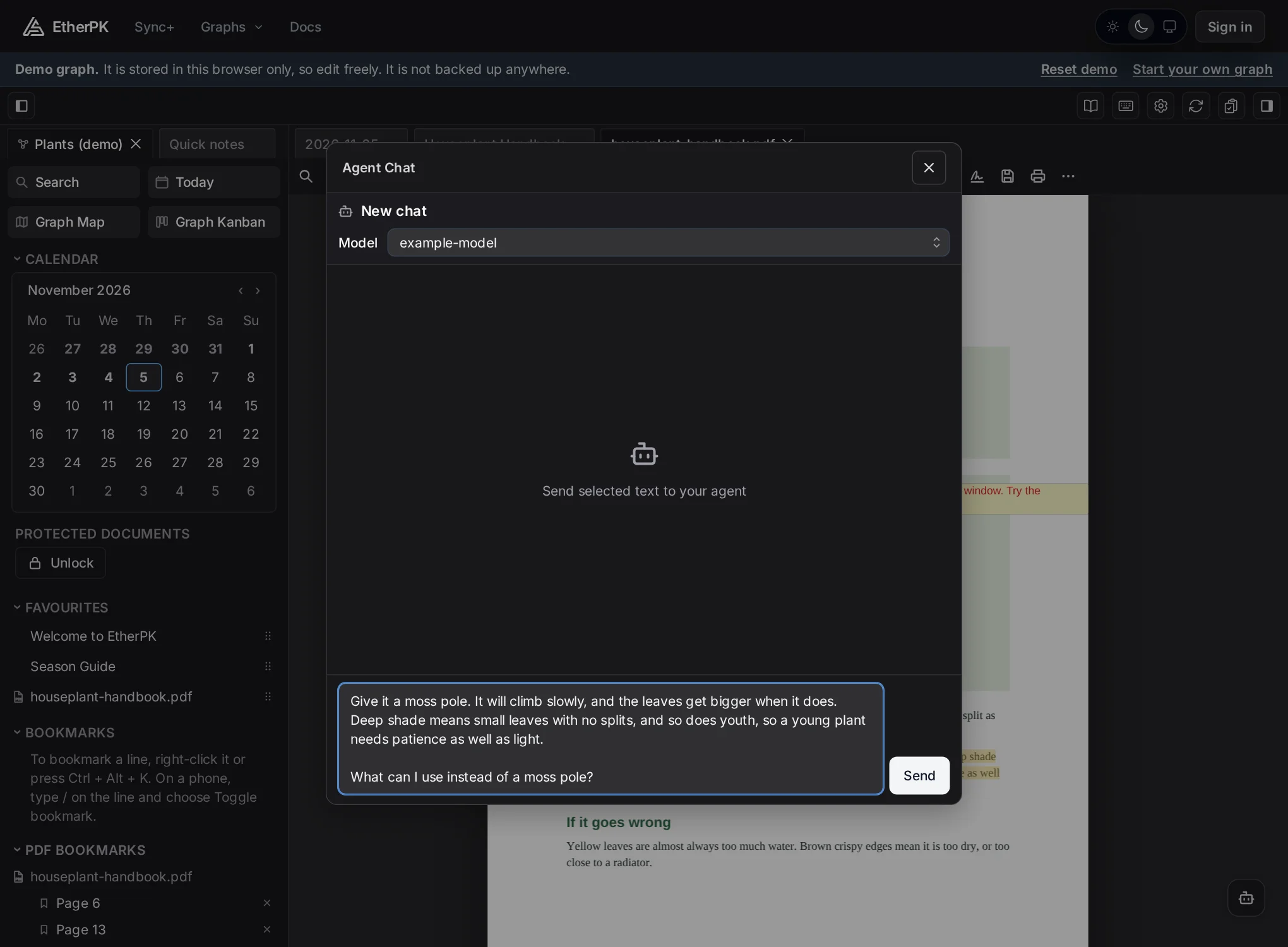
The model gets what's in the chat and nothing else, so it never sees the rest of the PDF, and a very large file costs you nothing extra. The chat isn't kept anywhere: it ends when you close it. Copy takes the latest answer as bullets to paste into a note, a PDF note or another app.
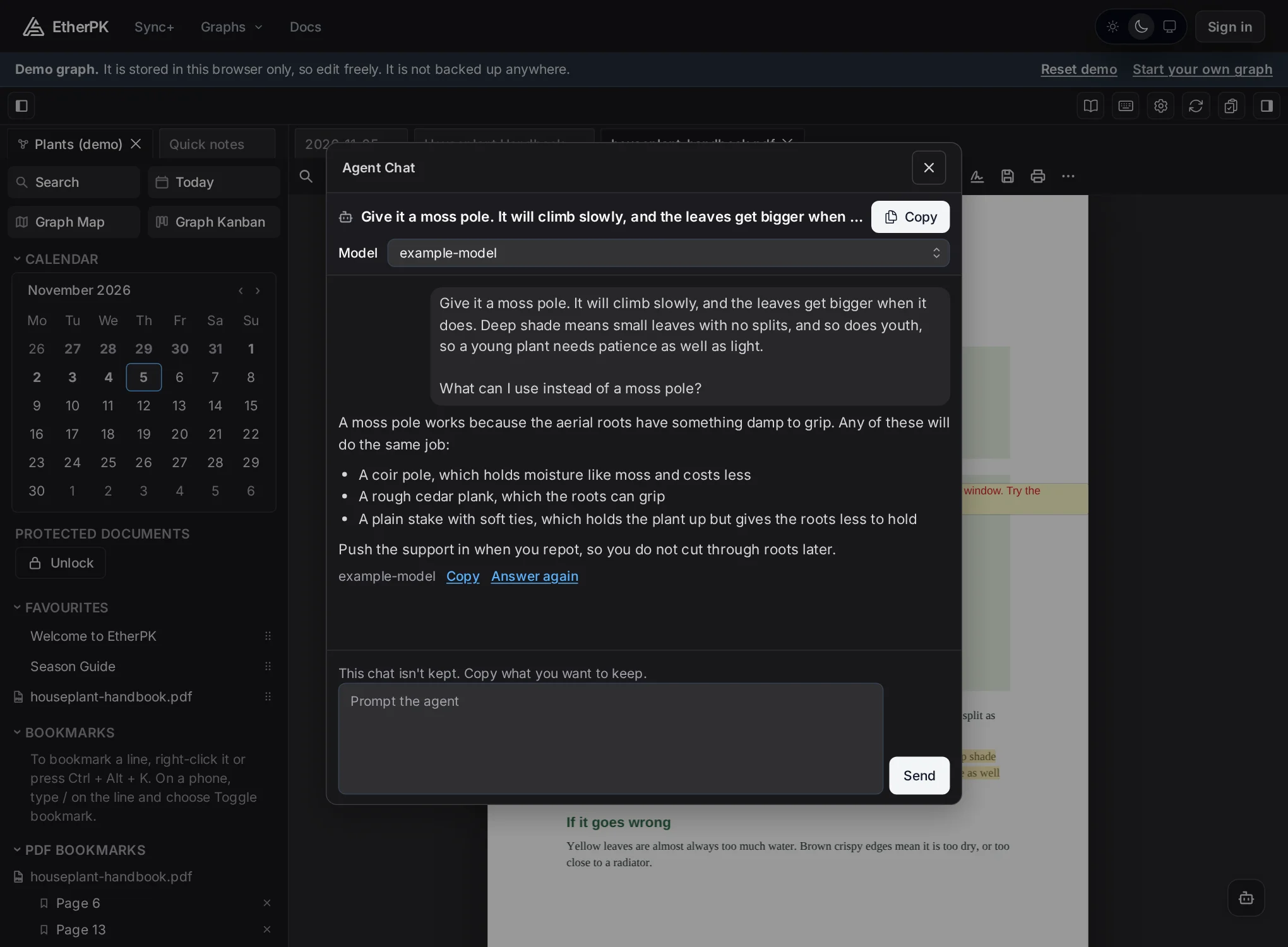
It uses your own model connection, the same as the rest of Agent Chat.
Fill it in and sign it
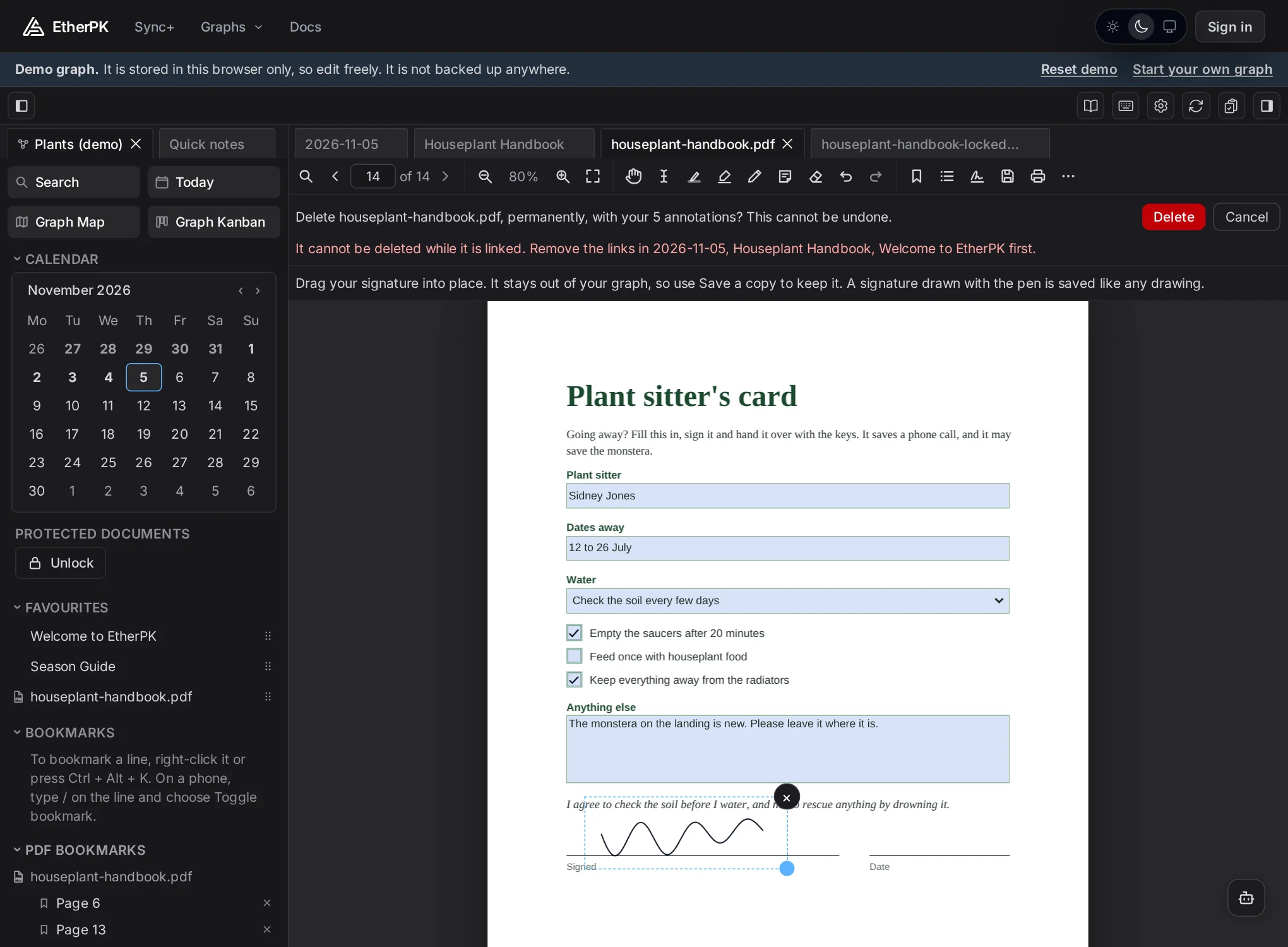
The last page of the handbook is a plant sitter's card, a real PDF form. You fill it in on the page: type in the fields, tick the boxes and choose from the lists. The values save automatically, the same way as annotations.
To sign it, select Add your signature, then draw on a pad, type your name or use a picture of your signature.
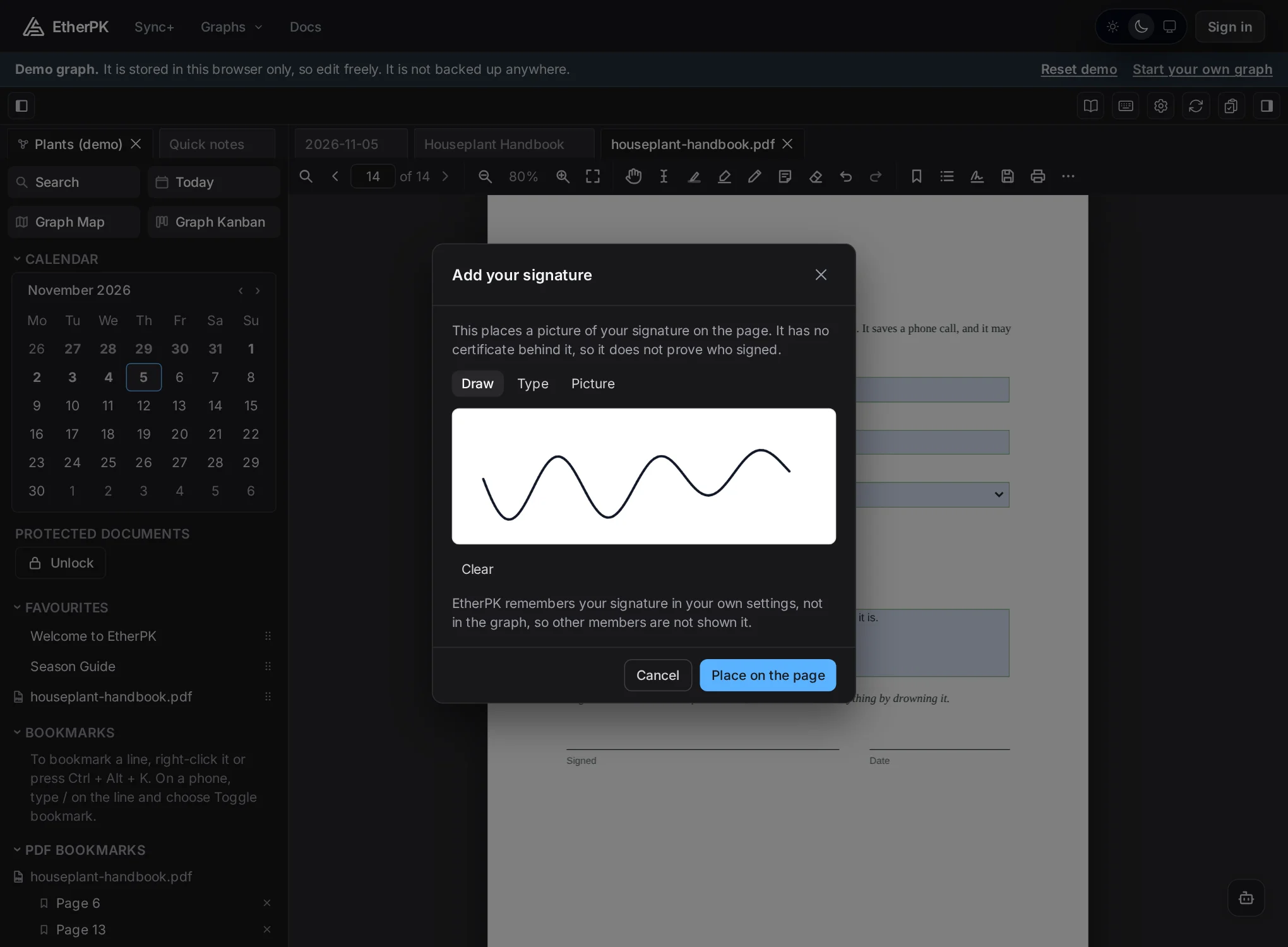
Place on the page drops it onto the page, where you can drag it into position and resize it from the corner.
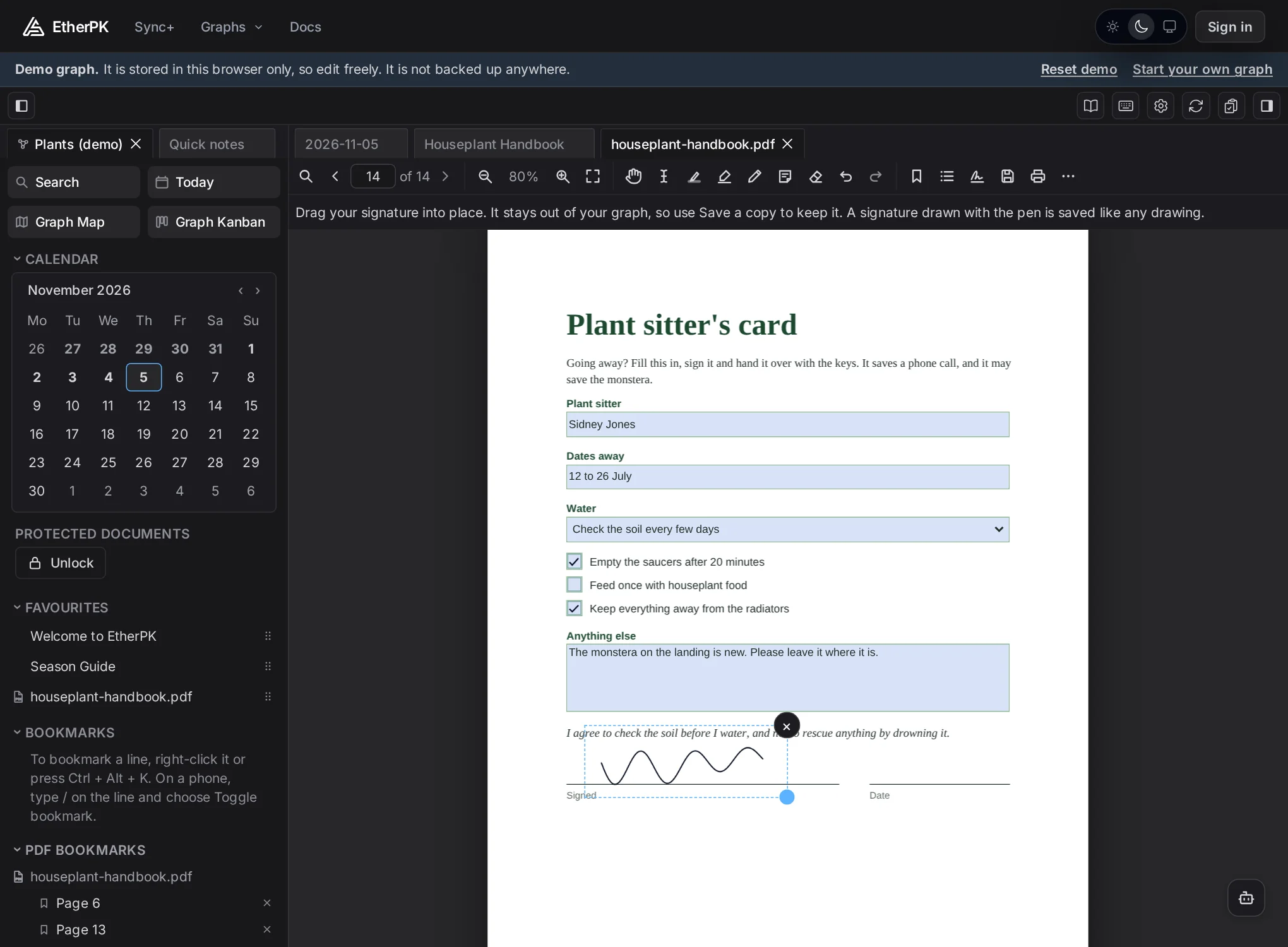
EtherPK remembers your signature in your own settings rather than in the graph, so next time the dialog offers it with Use this. A placed signature stays out of the graph too, because the other members of a synced graph hold its key and a local graph might be in Git. It lives in the open tab until you save a copy, and EtherPK asks if you close the tab before then. A signature you draw with the Pen is saved like any other drawing, so don't use the Pen for one you'd rather not keep.
This is a picture of a signature with no certificate behind it. It's what most people mean when they ask you to sign and return something, but it doesn't prove who signed.
Save a copy
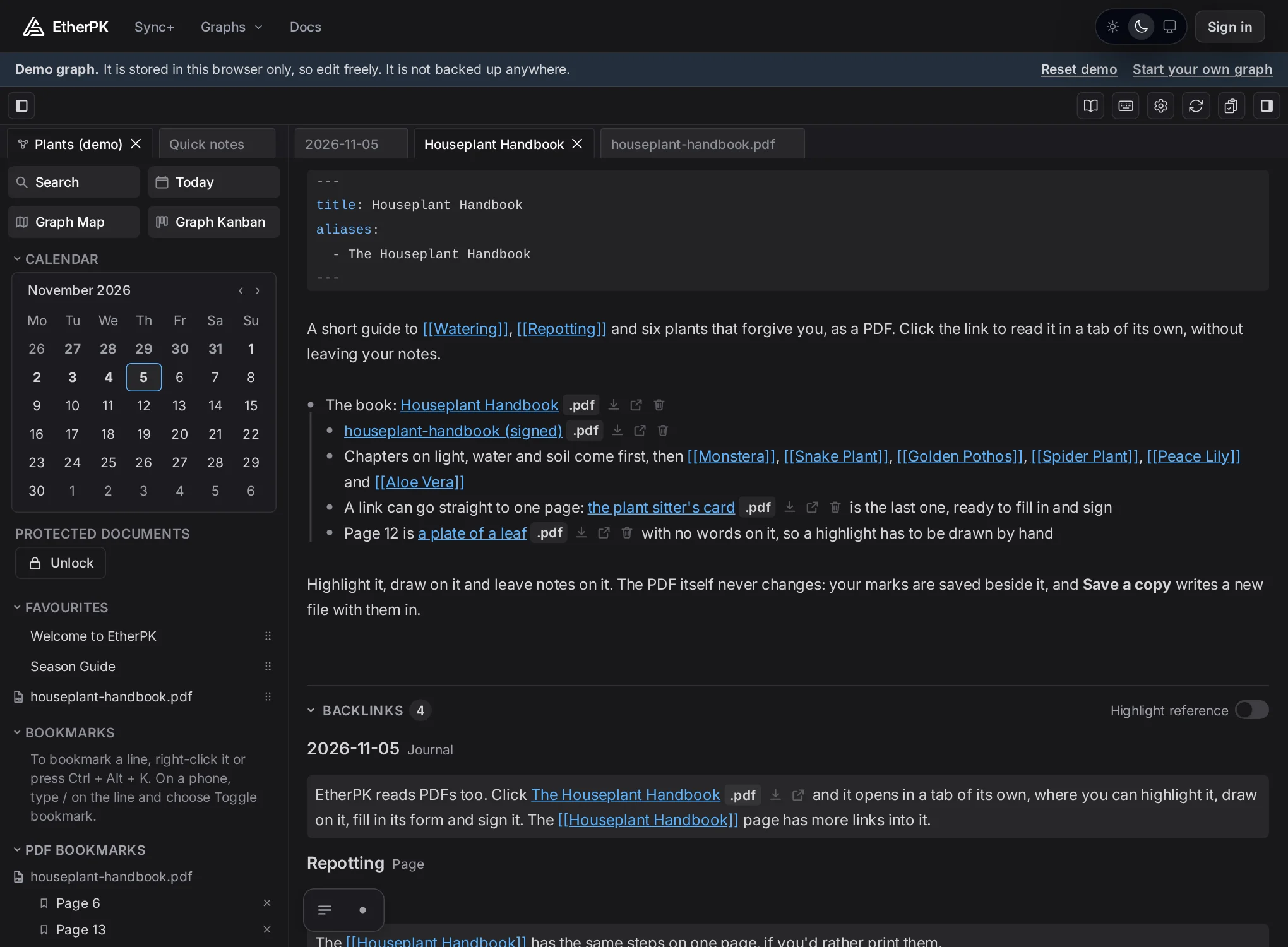
Since the PDF in your graph never changes, you need a new file to send to someone. Save a copy writes one, with your annotations, form values and signature in it, and suggests a name that says what changed, like houseplant-handbook (signed).pdf.
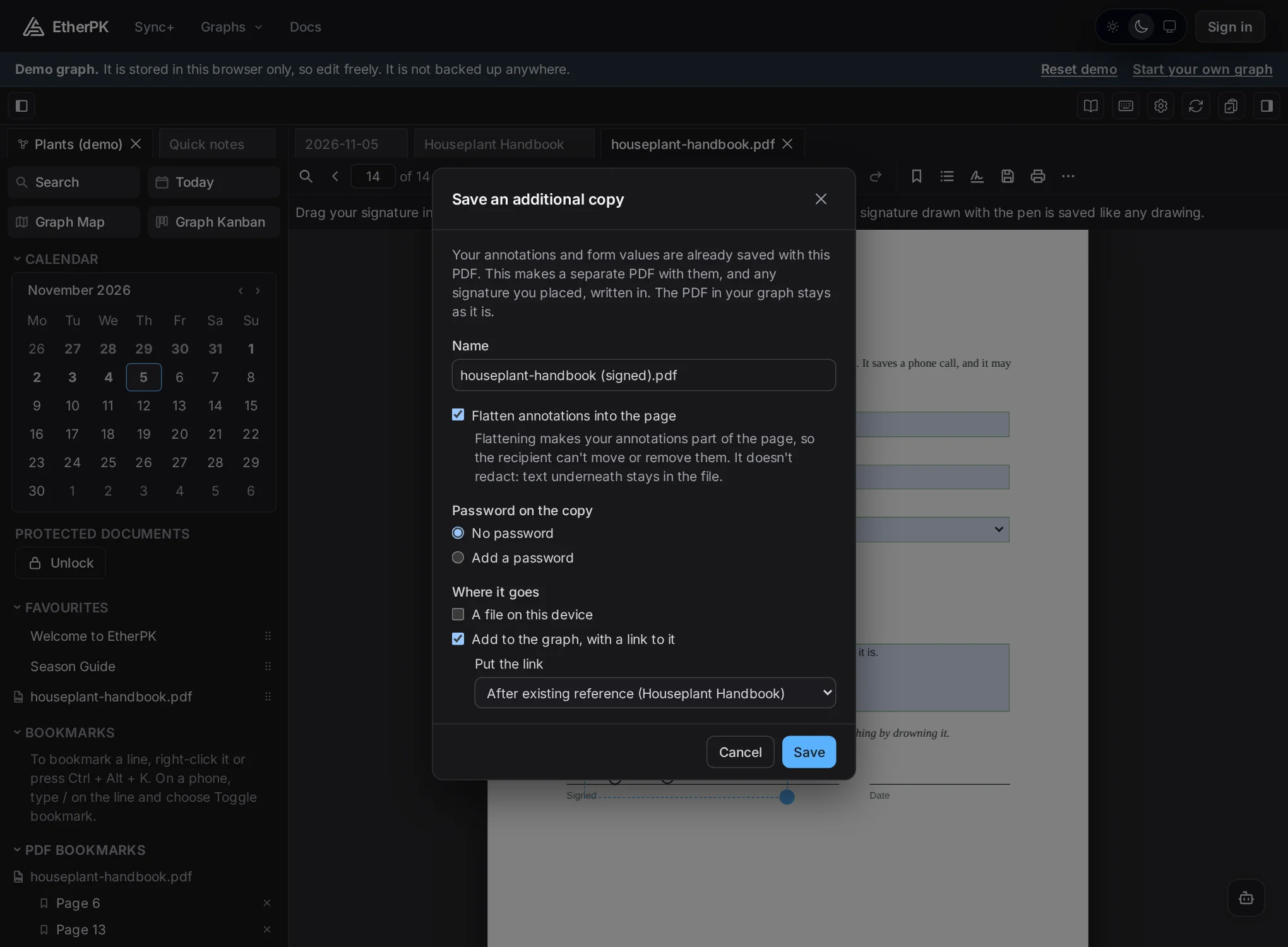
There are three choices to make:
- Flatten annotations into the page draws everything into the page, so the recipient can't move or remove it. Otherwise your annotations stay as PDF annotations that their PDF editor can change. Flattening doesn't redact: text under a highlight stays in the file.
- Password on the copy adds, changes or removes a password. EtherPK doesn't keep it, and without it nobody can open the copy.
- Where it goes is a file on your device, the graph, or both.
A copy added to the graph gets a link, by default straight after the existing reference to the PDF, so the signed copy ends up under the original in your notes. The PDF you were reading stays open.
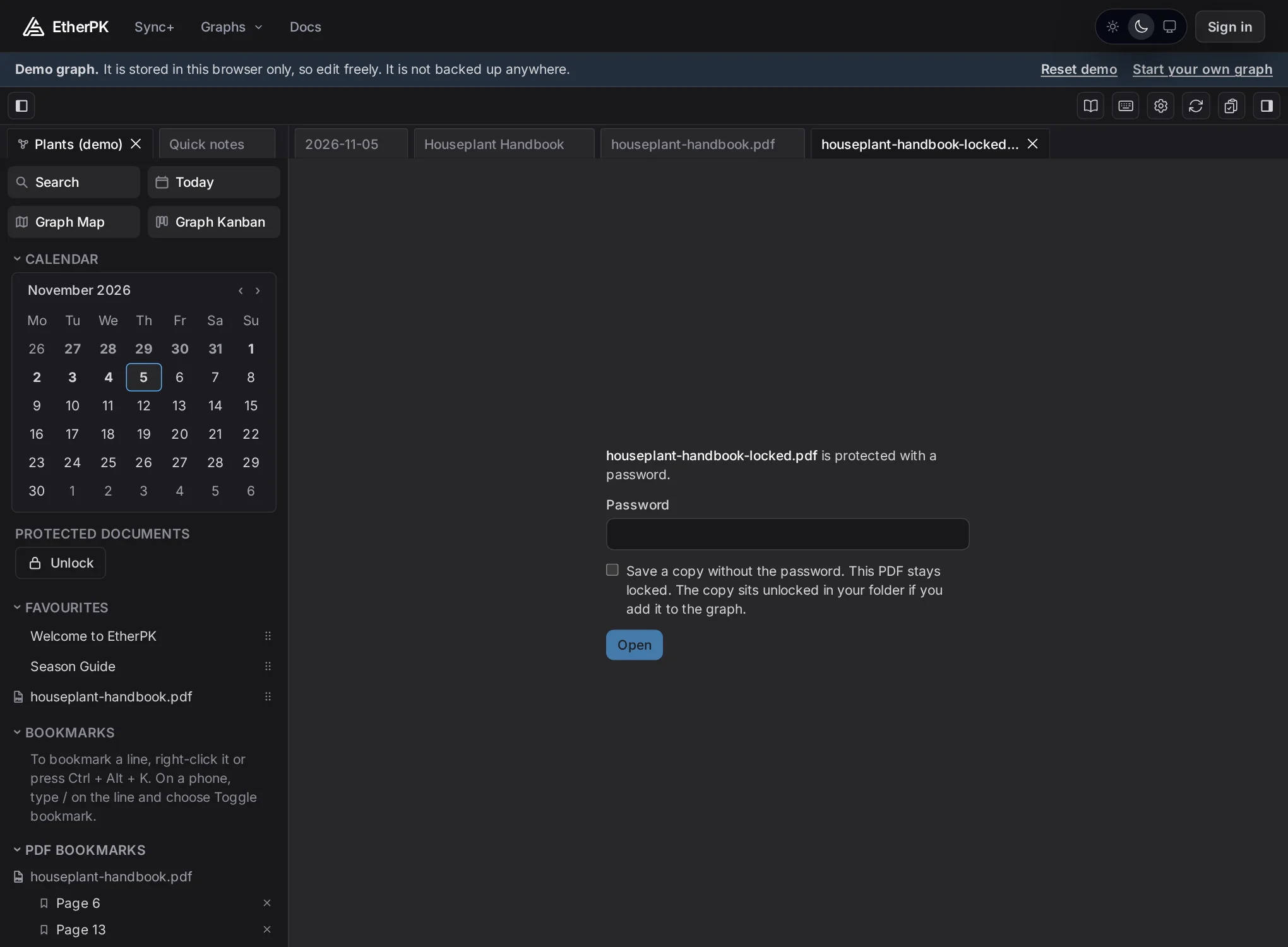
A PDF with a password asks for it each time you open it, before any page shows, and EtherPK never stores it. The prompt can also start a copy with the password removed, leaving the original locked.
Print works too, with an Include annotations tick for when you want clean pages.
On a phone
Every tool works on a phone or a tablet. Pinch zooms the PDF, even with a tool on. With no tool on, a double tap zooms in and then back to the page's width. The toolbar moves down to the bar at the bottom of the screen, where the editing buttons usually are, and the app's header hides while a PDF is in front, coming back when you open anything else. That leaves almost the whole screen to the page. The rarer actions move into the More menu at phone width, and so does the page box. The page number shows over the page for five seconds whenever it changes, or when you tap the page.
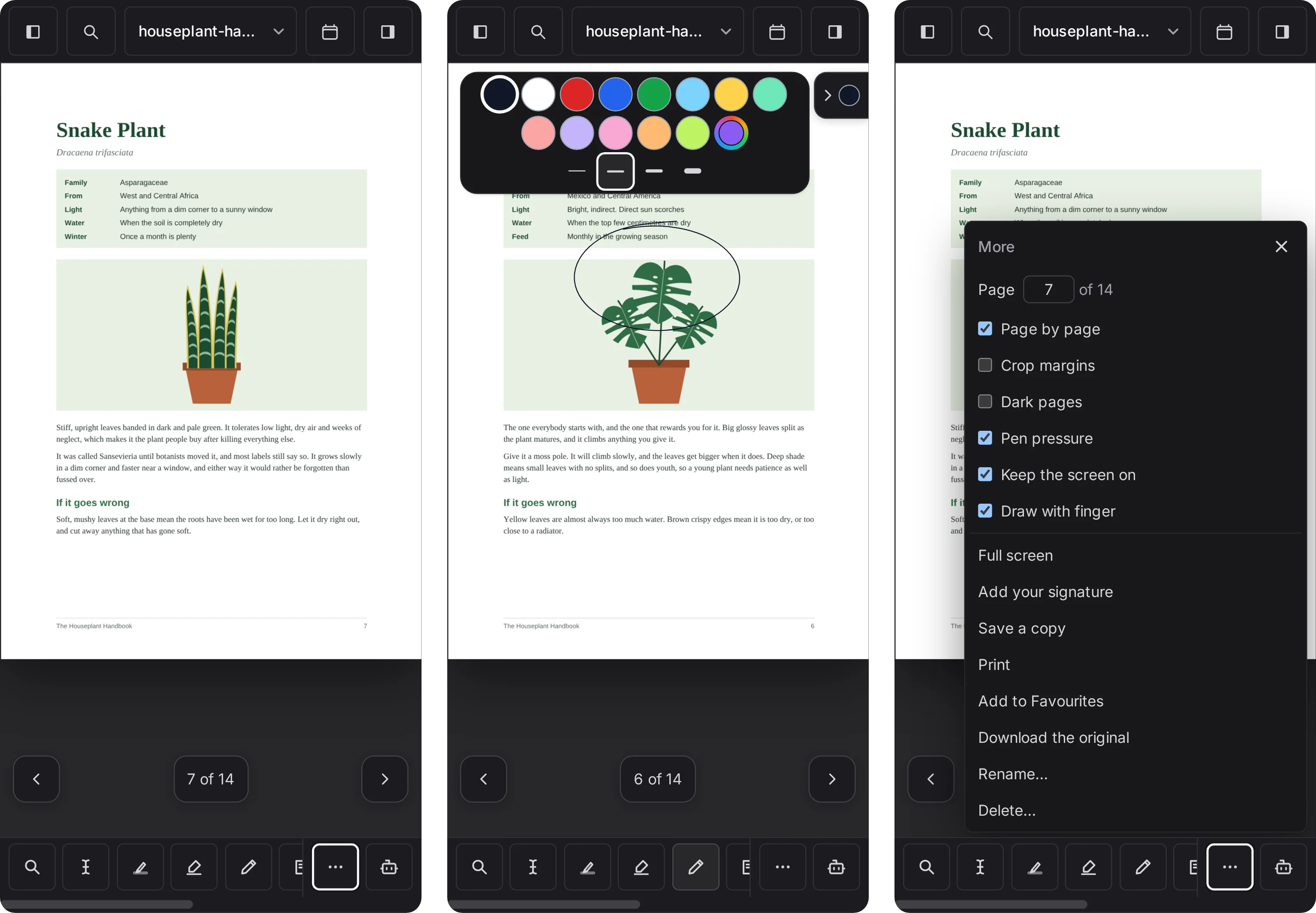
The settings that make a phone comfortable to read on are in the More menu:
- Page by page shows one page at a time, and you turn it by swiping, tapping anywhere up either side of the screen, or pressing the floating buttons, which sit near your thumbs.
- Full screen gives the PDF the whole window, and a button at the bottom right brings the controls back.
- Dark pages gives the pages dark colours, for reading in the dark. It's off by default, because the original look matters when you're checking or signing something.
- Crop margins hides blank margins, so the words get bigger on a small screen.
- Keep the screen on stops the screen locking while you read.
- Draw with finger chooses whether a finger draws or scrolls while a drawing tool is on. Two fingers always move and zoom the page.
On a synced graph, Keep on this device keeps the PDF for reading offline.
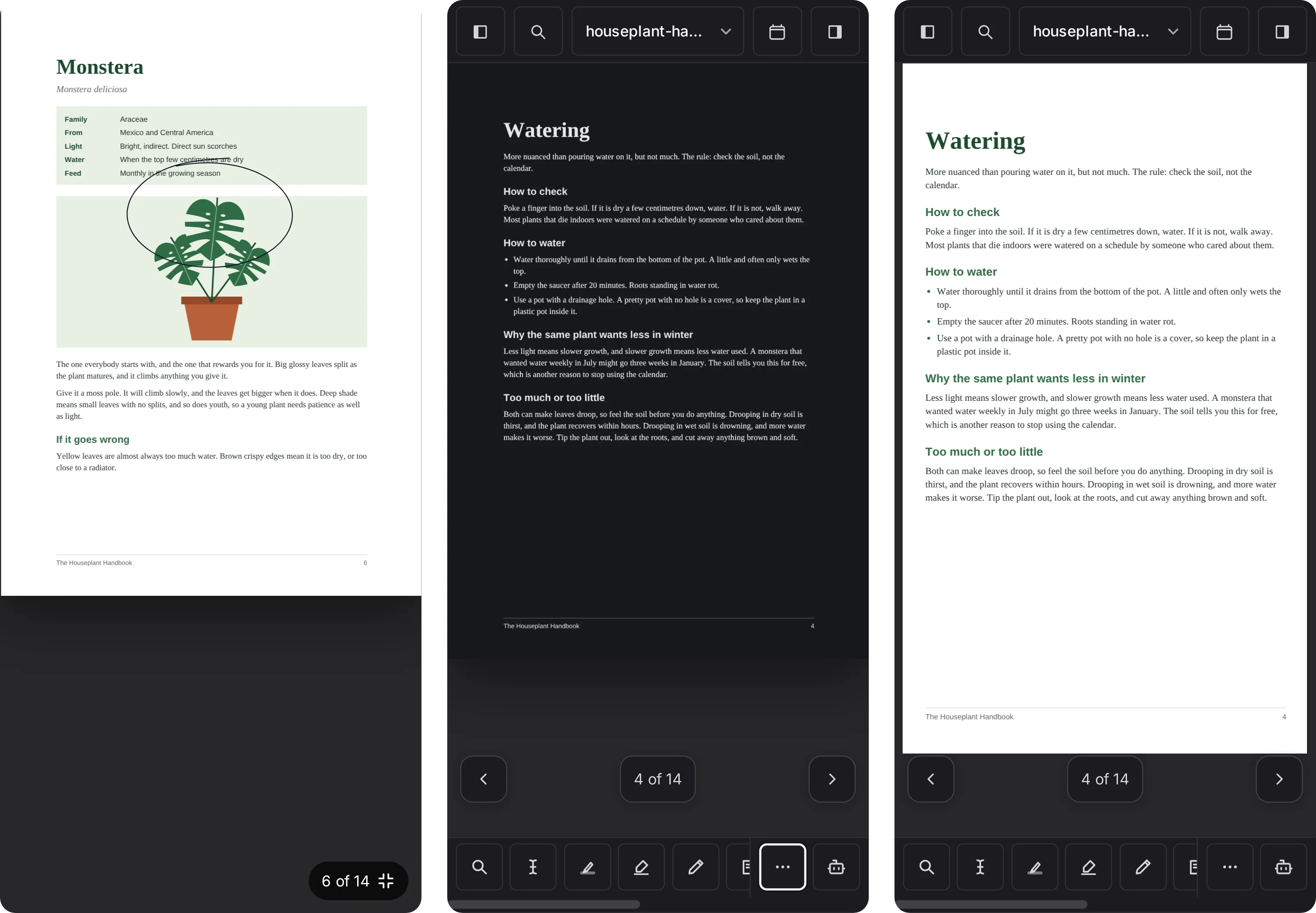
Rename and delete
Rename… in the More menu renames the file, and the links to it follow. Your annotations stay, because they're stored by the PDF's contents rather than its name.
Delete… asks first. It refuses while anything still links to the PDF, and names the documents that do.
What it doesn't do
- It doesn't recognise text in pictures, so a scan can't be searched or highlighted as text.
- Search doesn't look inside PDFs. Copy a passage to your journal if you want Search to find it.
- Annotations are yours alone. To share a passage with the other members of a graph, copy it to the journal, which they can read, or send them a saved copy.
Try it
Open the demo graph and click the link near the top of today's journal. The PDFs: Reading, Annotating and More docs page covers every control in detail.