Version History For Your Synced Notes (Additional Safety for Working Alongside AI Agents)
In addition to real-time multiplayer collaboration, your markdown notes in a synced graph in EtherPK now keep a version history for every page and journal entry. It also keeps the pages, journal entries and files you delete, so you can restore them if needed.
Versioning is an especially important piece of functionality along side AI agent editing or your notes. While versioning is a useful feature for human editing, it becomes more important when AI Agents have the capability to make broad changes at speed. EtherPK has recently added additional AI integration features, such as MCP Server and Headless Client with improved access to Tasks and Kanban boards in your graph, and also Agent Chat for talking to agents using context from your notes.
Version history is available as of version 0.22.0.
A version is a copy of the whole text of one page or journal entry as it was at one moment. EtherPK makes them while you write, and before certain actions such as a delete or a rename. Version history is for the paragraph you rewrote and then wanted back, and for the page you deleted by accident.
When a version is created
There's no command to save a version by hand. EtherPK makes them automatically, keeping one when you pause after editing a page or journal entry, at most once every ten minutes for each document on each device. If you close the document, or leave EtherPK for another browser tab or another app, any edits still waiting go into a version straight away.
EtherPK also makes a version before any of these actions:
- Deleting a page or journal entry.
- Renaming or merging a page. Each document the rename changes gets a version.
- Using Replace all in the find box.
- Removing protection from a document.
- Restoring a version.
Look at what changed
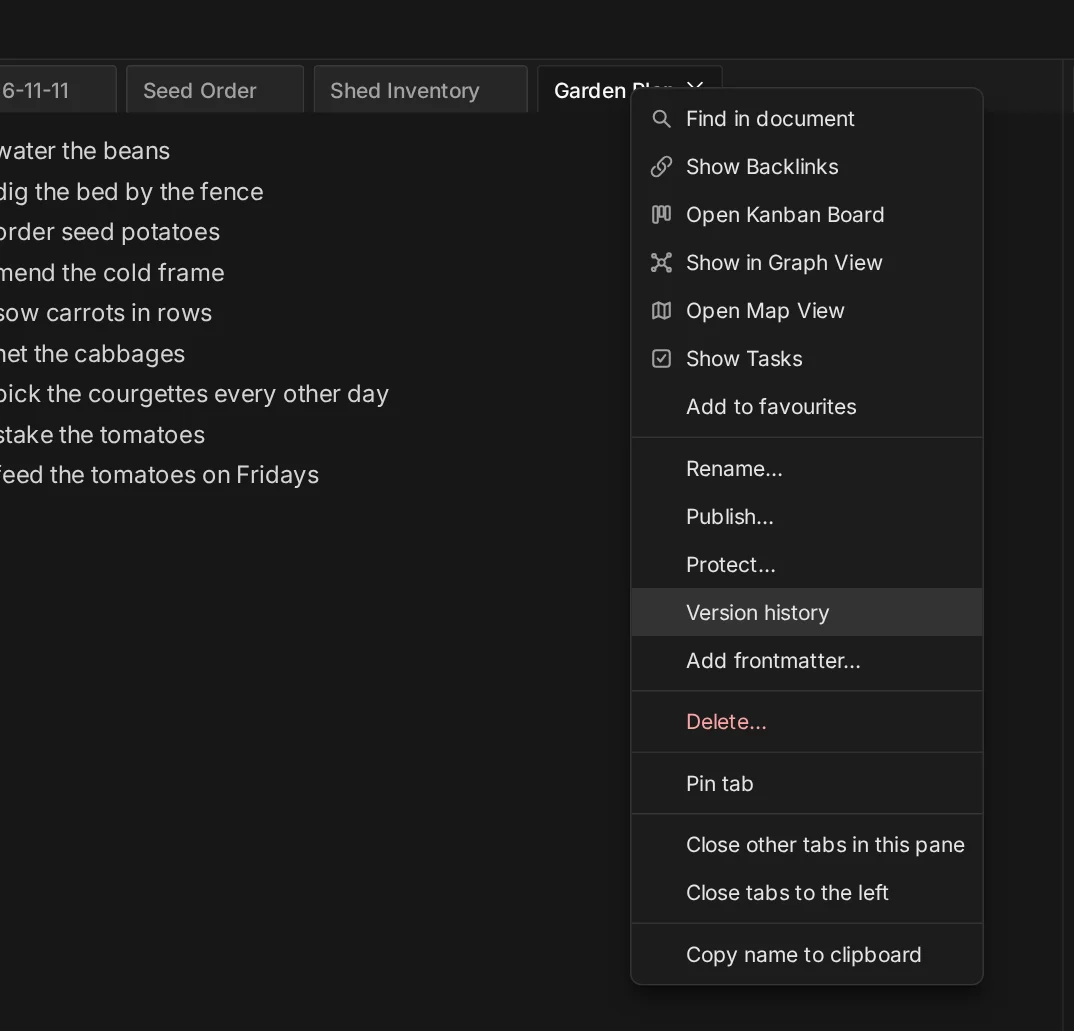
To see the versions kept for a document, right-click its tab and choose Version history.
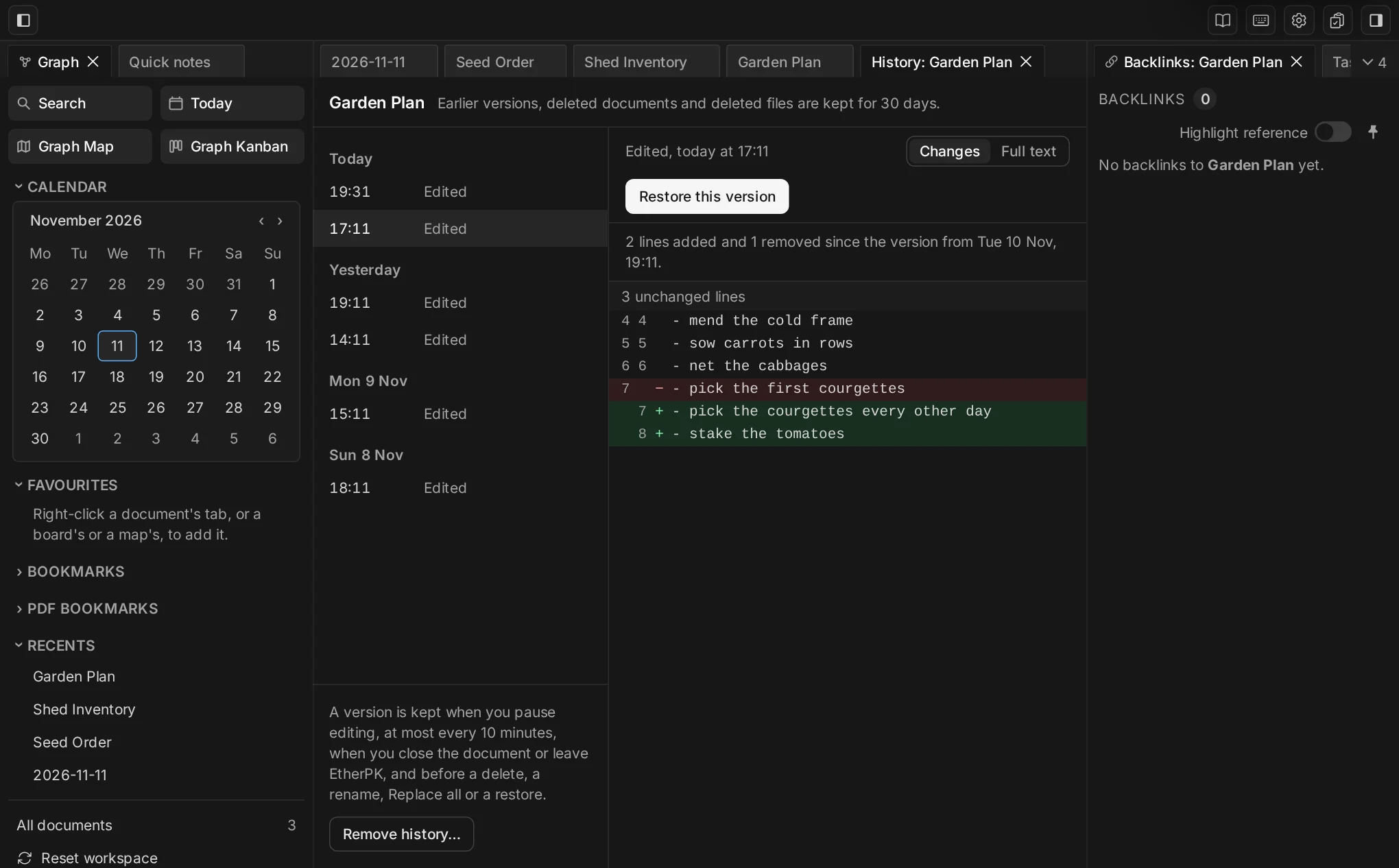
The history opens in its own tab, with a title such as History: Garden Plan. Versions are listed by day with the newest first, under Today, Yesterday and then the date. Each row shows the time and what made the version, such as Edited or Before a rename, and a notice beside the page name says how long versions and deleted items are kept.
Select a row to see what that version changed. On a desktop, a preview opens beside the list and compares the version with the one before it, with added lines marked + on green and removed lines marked − on red. Full text shows the whole text of the version. In the picture, the selected version is the earlier of today's two, which removed one line about courgettes and added two.
Restore a version
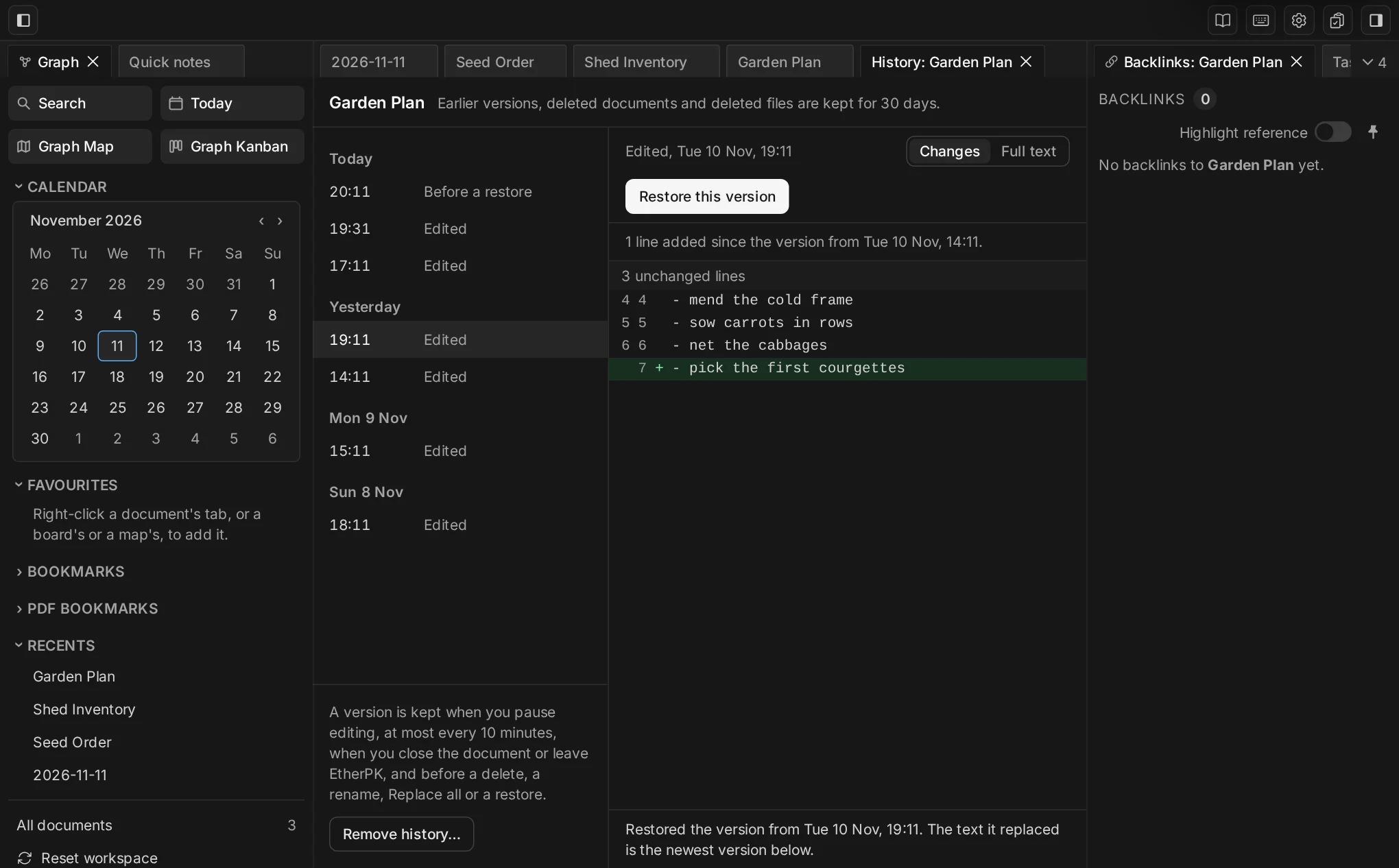
To restore a version, select it and then select Restore this version above the preview. Its text replaces all the text in the document, and a message under the preview names the version you restored. A restore syncs to every device like any other edit.
You aren't asked to confirm, because the text you replaced becomes the newest version, at the top of the list with the label Before a restore. Ctrl+Z (Cmd+Z on a Mac) doesn't undo a restore. To undo one, restore the Before a restore version instead. In the picture, the version from 19:11 yesterday has been restored.
Restore something you deleted
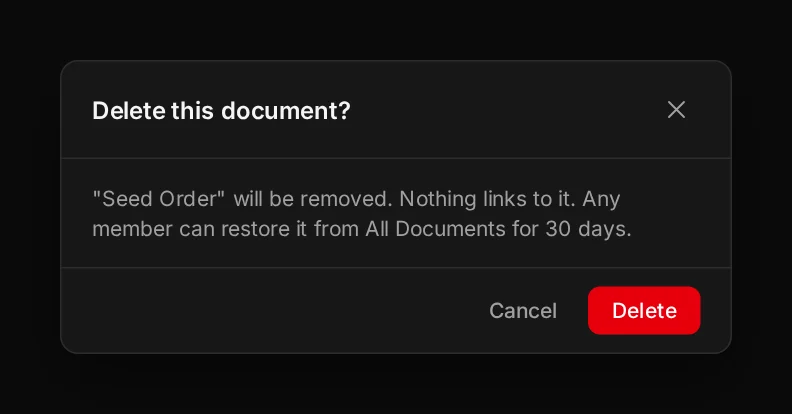
When you delete a page or journal entry, the Delete this document? dialog says that any member can restore it from All Documents, and for how many days.
Open All documents from the bottom of the sidebar. Below the list of documents is a section called Deleted documents and files, which stays closed until you select it. Each row has a name, the date the item was deleted and the date it will be removed, with Restore and Remove for good… buttons.
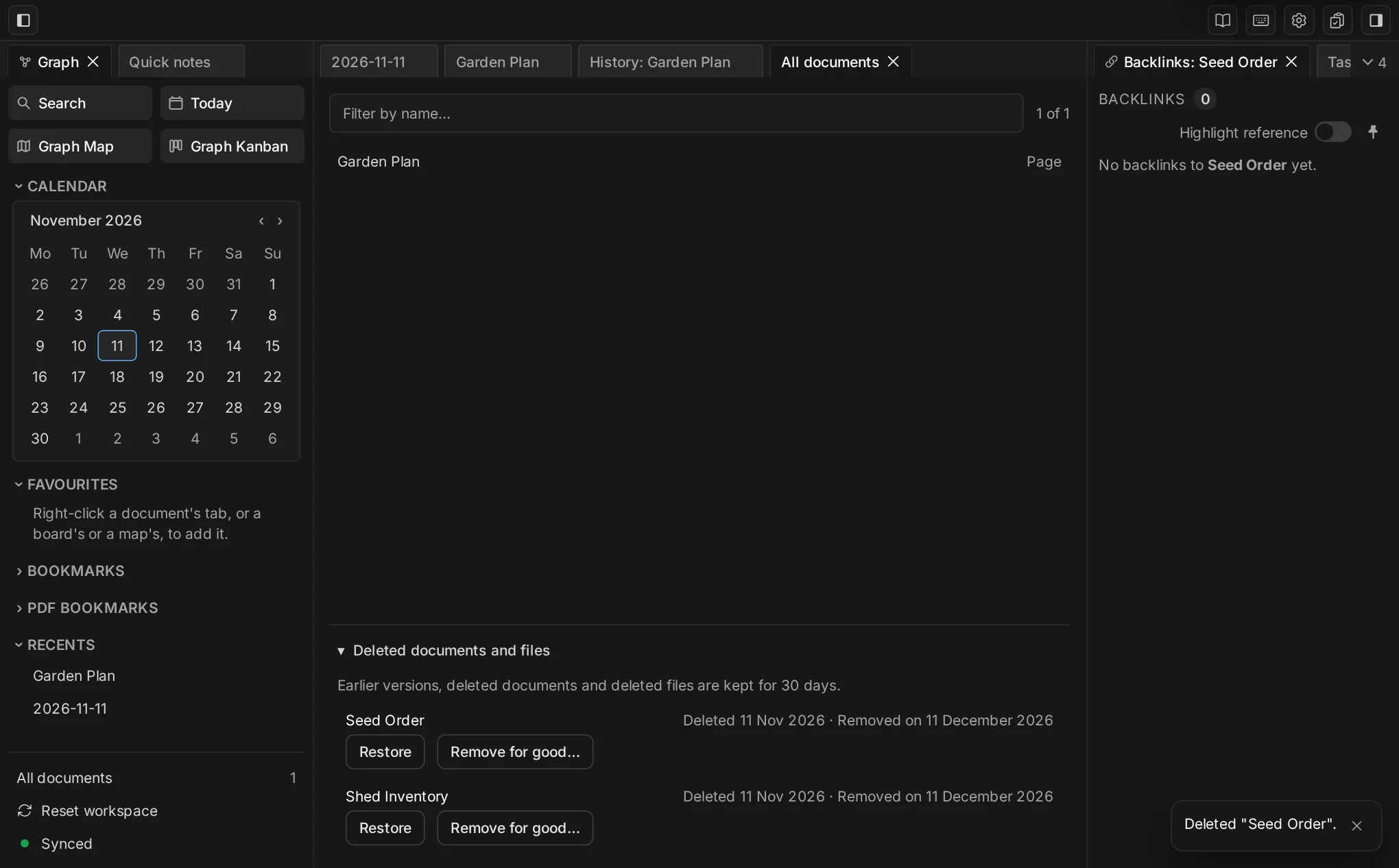
Because a version is made before a delete, Restore brings the document back with the text and name of its newest version. If another document has taken the name since, you're asked for a new one, and the two aren't merged. Remove for good… asks first, then removes the deleted document and its earlier versions at once, and you can't undo it.
Restoring a version also brings back any deleted pictures and files it uses, but a file that was removed for good shows as missing.
What it keeps and for how long
Versions and deleted items are kept for a period and then removed. The period is 30 days in these pictures, and the notice at the top of each version history and of Deleted documents and files shows it for your graph. Kept versions and deleted files count towards the graph owner's storage allowance.
Edited versions are thinned as they age. EtherPK keeps all of them for the first day, then the newest in each hour until it's seven days old, and then the newest in each day until the period ends. Versions made before an action, such as a delete or a rename, aren't thinned.
Your device encrypts versions with the graph's key before it uploads them, the same as your notes, so the sync service can't read them.
Every member of a shared graph can read and restore versions, and restore deleted items, so protecting a document removes all its earlier versions.
What it doesn't do
A local graph is a folder of files on your device, so it has no version history in EtherPK. Its history is whatever version control you keep for that folder.
Annotations and highlights in PDFs and EBooks have no versions of their own.
An AI agent connected to a synced graph can list the versions kept for a document and read one, with the list_versions and read_version tools. It can't restore one, though. A person does that in EtherPK.
Try it
Version history needs EtherPK 0.22.0 or later and a synced graph. The Version History docs have the rest, including how to remove the versions kept for a document yourself.